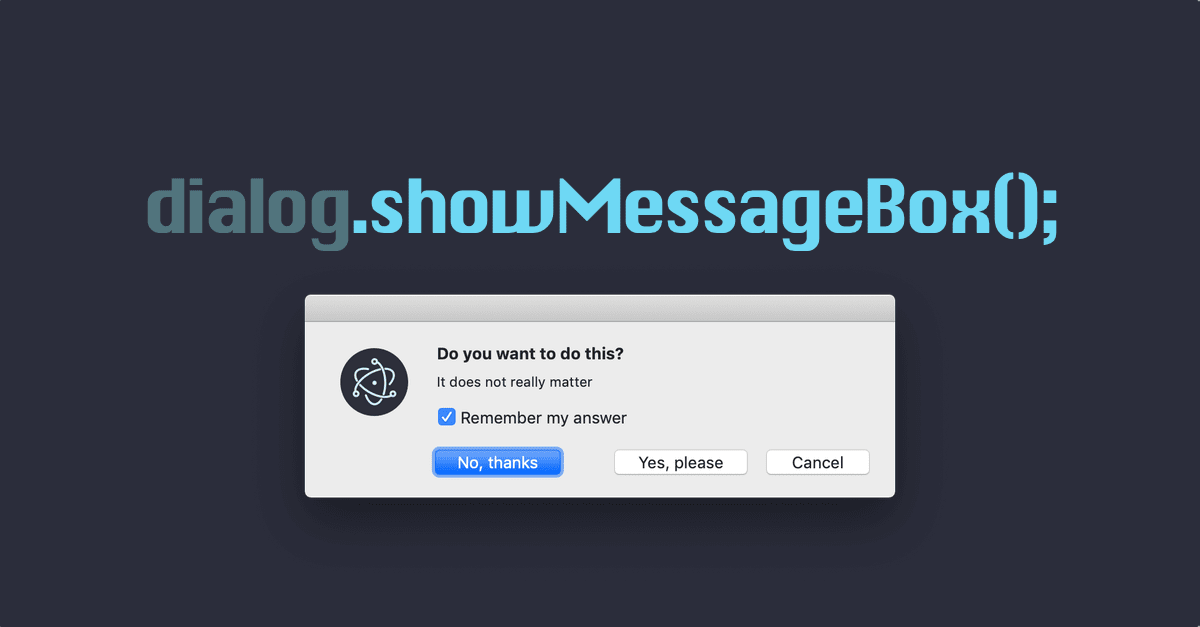
With showMessageBox we can display a message with our without a set of buttons from which the user can choose from.
The minimum required code to show a message box is:
const { dialog } = require('electron')

const response = dialog.showMessageBox(null);
console.log(response);
But that would only display a box with no info and an OK-button. The dialog would return a response which contains the index of the button the user clicked.
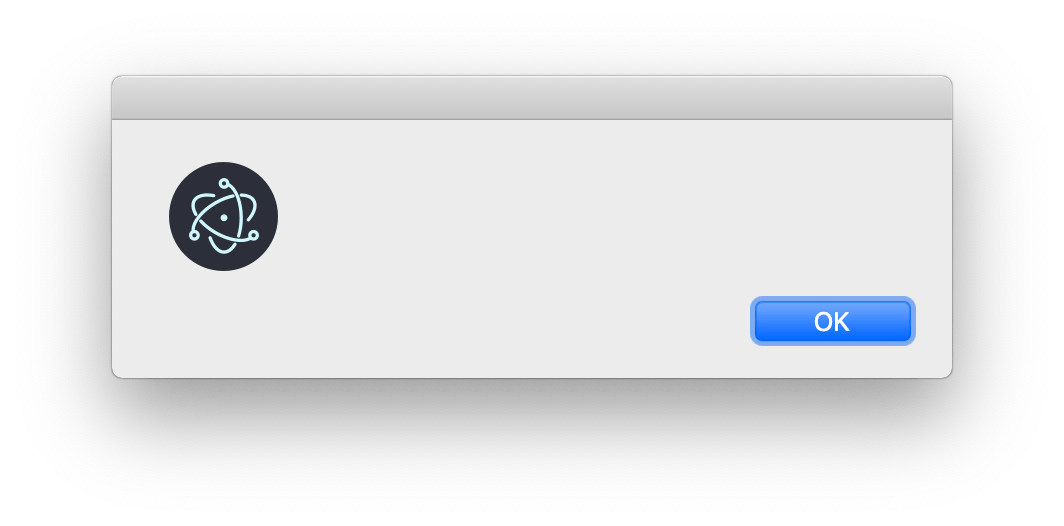
An empty showMessageBox
Adding more info to the message box
Lets add more info the the box, A question and two buttons and use the callback method as well.
const options = {
    type: 'question',
    buttons: ['Cancel', 'Yes, please', 'No, thanks'],
    defaultId: 2,
    title: 'Question',
    message: 'Do you want to do this?',
    detail: 'It does not really matter',
    checkboxLabel: 'Remember my answer',
    checkboxChecked: true,
  };

  dialog.showMessageBox(null, options, (response, checkboxChecked) => {
    console.log(response);
    console.log(checkboxChecked);
  });
The code above would produce a message box looking like this:
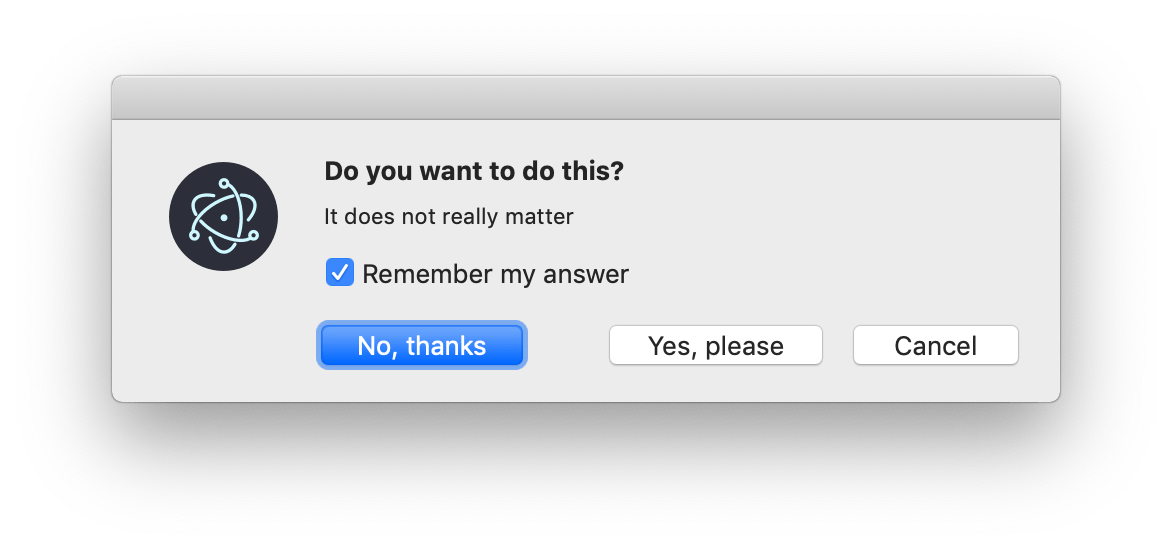
Show message box
typedisplays different icons in the messagebox.buttonsis an array of strings that will be displayed as buttons.defaultIdsets which of the buttons should be selected when opening the box.titledisplays a title on some platforms.messagedisplays a message.detaildisplays more text below the message.checkboxLabelthe box can display a checkbox as well. this is the label for it.checkboxCheckedthe initial value of the checkbox.
Checkout the dialog documentation to get more info and what values you can set for the different settings.
This code example is added to the electron tutorial app dialog on github.