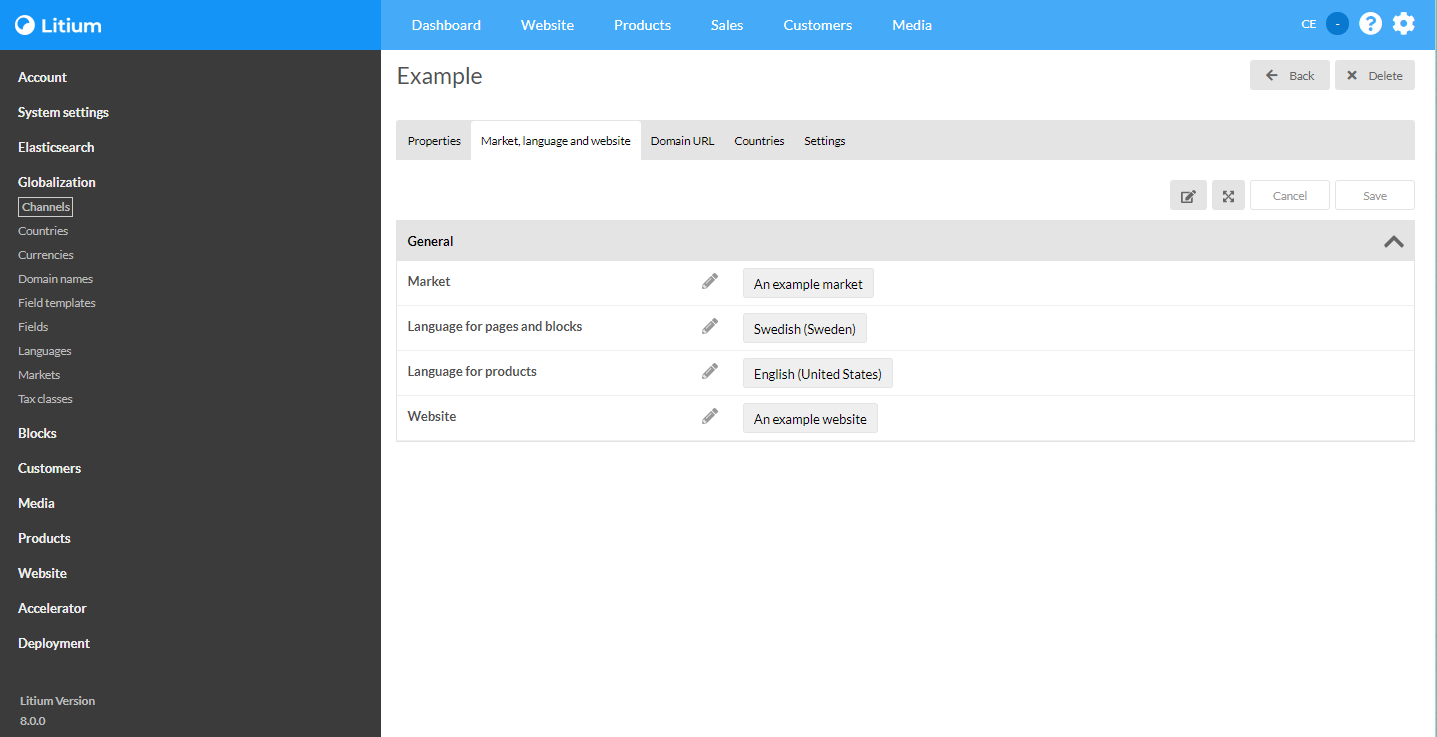
You see a lot of CultureInfo.CurrentUICulture and CultureInfo.CurrentCulture references in the Accelerator. Those are connected to two channel fields called Language for pages and block and Language for products. Lets have a look at when to use which!
Language for pages and blocks and language for products on a channel
Usage
Language for pages and block sets the value for CultureInfo.CurrentUICulture. Language for products sets the value for CultureInfo.CurrentCulture. This means you can do like this when getting a value for a field that is multiculture for proucts:
In the Litium projects I’ve worked these fields mentioned above are almost always pointing to the same language. So it often times won’t make much difference. However, if you only use CultureInfo.CurrentCulture when working with products and CultureInfo.CurrentUICulture when working with pages and blocks you’ll be future proof if an editor decides to change those fields.
To use a Middleware with Litium we can create a startup class that inherits the IOwinStartupConfiguration interface and use it to insert a middleware into the OWIN pipeline.
A middleware is, put simply, a piece of code which can read information about the current request and add information to the response. And it’s a good place to put code that doesn’t really fit into controllers or services where we need to examine every request.
The example below will examine every request that comes into a Litium site. We are looking for a specific querystring and we want to store its value as a cookie. This is a real life example, but it has been modified and simplified.
This is tested with Litium 5 and 7 but probably works in more versions. For the sake of simplicity this post will not take any project standards into consideration. But feel free to use the comments to suggest changes or improvements.
1. Creating a startup class
Since I’m using a fresh install of the Accelerator for demonstration purposes and not doing this in a customer project I’m just going to put this class in the Litium.Accelerator.Mvc root folder. Your project structure will probably be different depending on your project standards.
Start by adding a new class called Startup.cs and let this class inherit and implement IOwinStartupConfiguration. Then we would have a class that looks like this:
Create a new folder in the Litium.Accelerator project called Middleware and create a class called UtmCampaign.cs. Let this class inherit from OwinMiddleWare and implement that abstract class. (You need to install the nuget package Microsoft.Owin).
For this example I want to save the campaign name sent by different ad campaigns into a cookie. (I could then use this value when communicating with other third party services, which I have done for some customers, but we won’t cover that in this tutorial).
The UtmCapaign.cs middleware will now look like this:
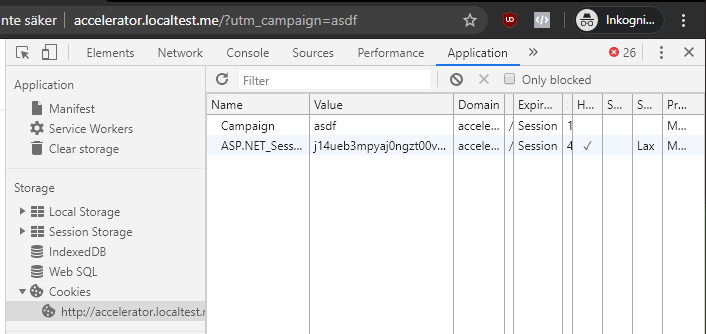
And if I now browse to http://accelerator.localtest.me/?utm_campaign=asdf I can see that my middleware is put to use and has created a cookie for me:
Litium middleware result
5. Other uses of IOwinStartupConfiguration
The IOwinStartupConfiguration class isn’t only to used register your own middlewares. You can also use it to, for example, setup signalR if you want to use that on your Litium site.
There are two folders where Litium stores files. The Files Directory and the Common Files directory. Both contains uploaded images, thumbnails, and search indices etc. But the Common files directory is used in multiserver environments, and it stores information that servers would share.
filesDirectory
You can set these paths in web.config. By default the Accelerator v 7.2.3 has the filesDirectory set to ..\Files. I do not want it in the project folder but somewhere else on my disk. It is up to you where you want to put it. Do not forget to add it to your .gitignore(or exclude it from your version control) if you keep it in the default folder.
Lets take a look at using Papercut as SMTP-server during web site development. We’ll also take a look at StateServer. These tools works for any ASP.NET MVC-project but this post is a continuation of the Installing Litium Accelerator post.
1. Papercut
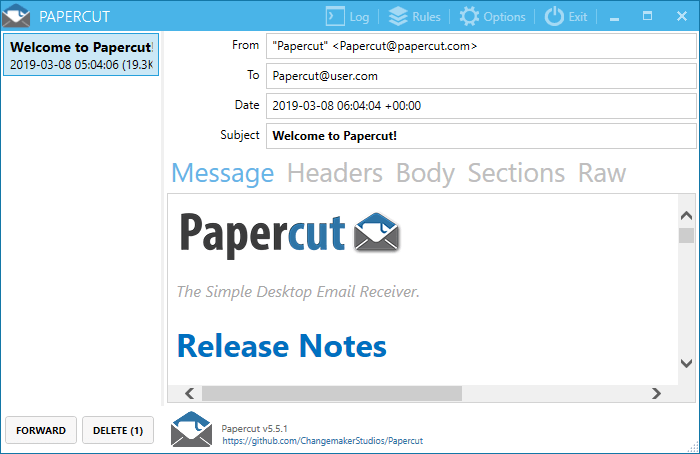
Papercut will act as an SMTP-server and will display every email sent from the website we are building. This is how the creators of Papercut explain it:
Papercut is a 2-in-1 quick email viewer AND built-in SMTP server (designed to receive messages only). Not only does it not enforce any restrictions how you prepare your email, but it allows you to view the whole email-chilada: body, html, headers, attachment down right down to the naughty raw encoded bits. Papercut can be configured to run on startup and sit quietly (minimized in the tray) only providing a notification when a new message has arrived.
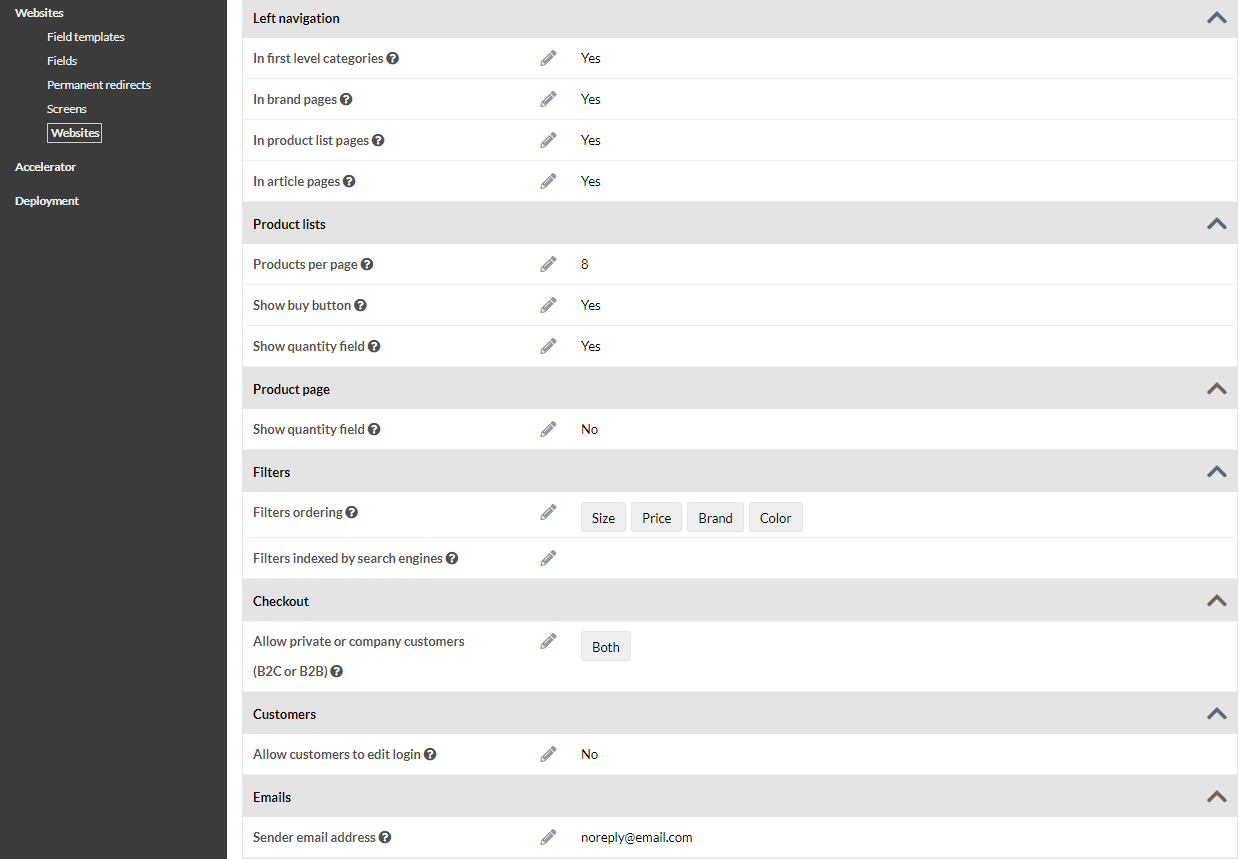
Next start your site (mine is accelerator.localtest.me) and log in to Litium. Once logged in go to Settings -> Websites -> Websites. Then edit your site and update the Sender email address to an address of your choice.
Litium - Sender email address
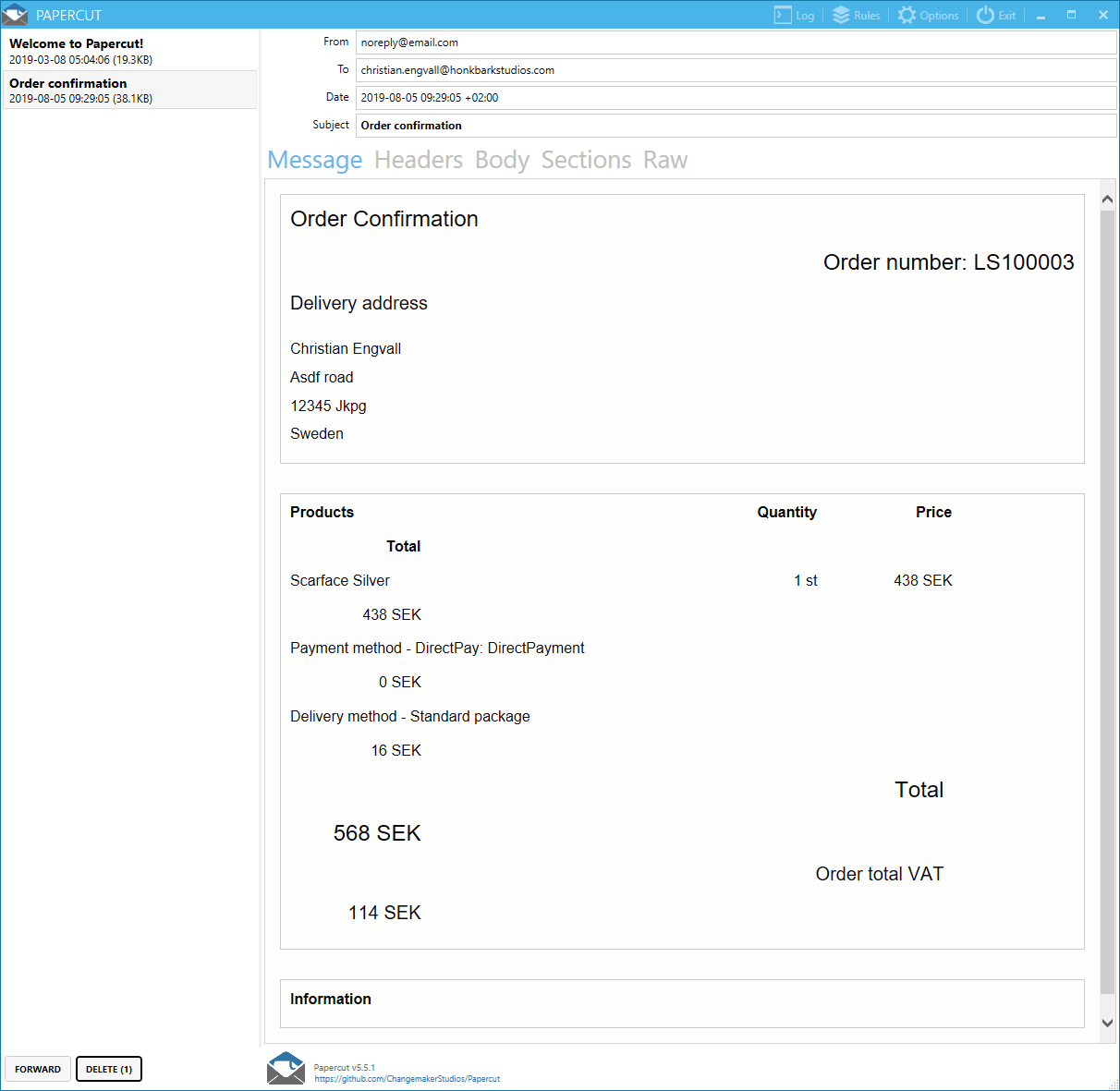
Save the settings and order something from the accelerator and you will see an order confirmation email show up in Papercut.
Litium - Sender email address
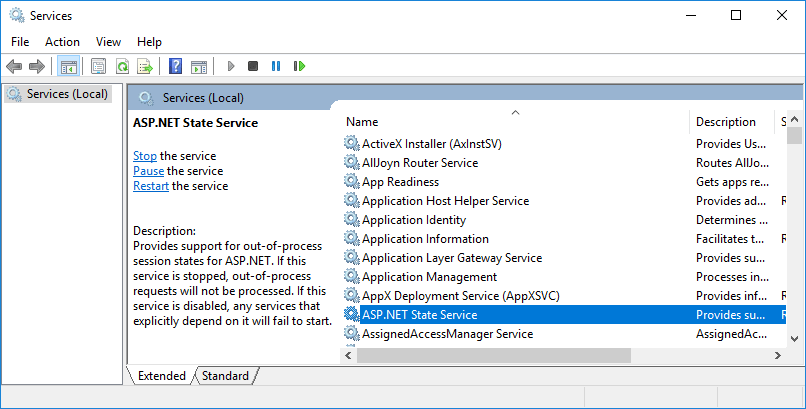
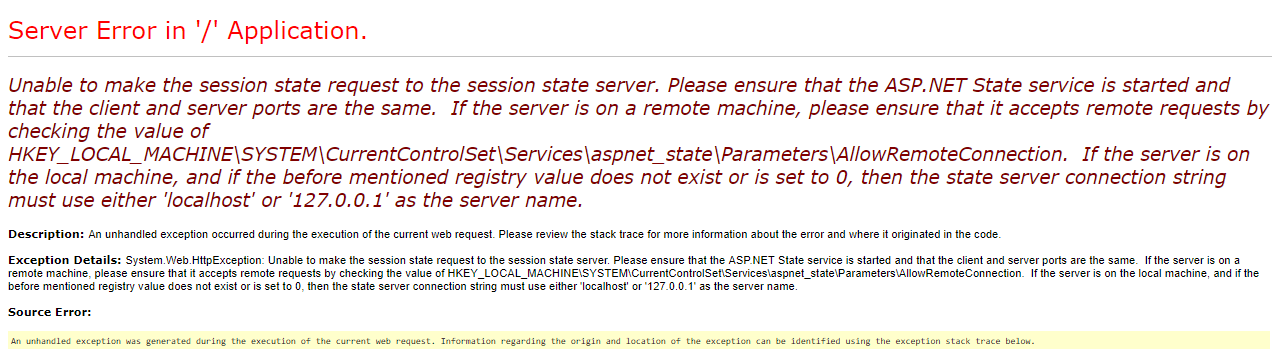
2. Using StateServer sessionstate
By default the site is setup to use InProc mode. This is fine, But every time the site gets restarted the sessiondata will be lost and we loose information about the cart for example. If we change this to StateServer we save some time every time we rebuild the project since the cart will be saved in our StateServer instead.