
To get seo-friendly urls in drupal 7 we need three modules.The first one we need is pathauto which takes care of the job to create the urls, but that doesn’t really get us all the way, we also need transliteration to get rid of, for example, åäö in the urls created. The last one we need is token, which is a dependency for pathatuto. This quick tutorial requires that you know how to install a drupal module.
1. Installation
Download and install pathauto and token
2. Activate modules
Active these modules by check the boxes and push save configuration.
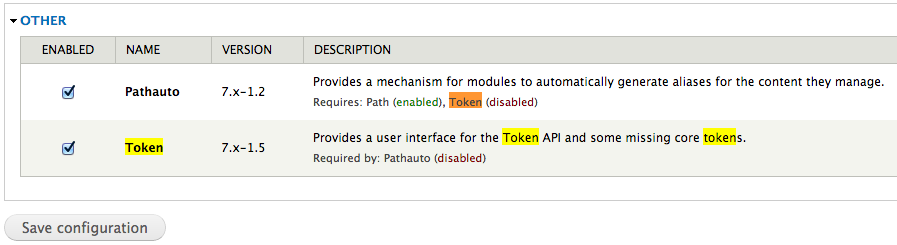
Activate modules
3. Update pathauto settings
Now go to Configuration -> search and metadata -> URL-aliases (
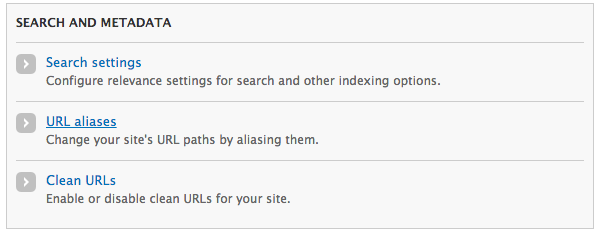
Url
Now click on the patterns tab in the top right corner to. This is where you can set at default url-pattern for all your content types or define a pattern for each type. The image below shows an example:
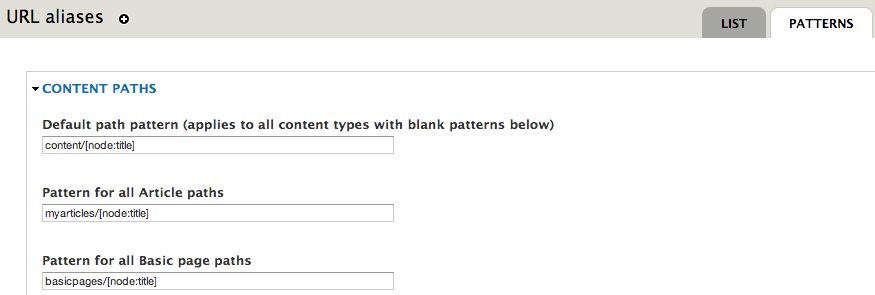
Patterns
the pattern for all Article paths is myarticles/[node:title] and the pattern for Basic page is basicpages/[node:title]. A bit further down that page you can also set the pattern for taxonomy and users. When you are happy with the patterns just hit Save Configuration.
Now if you create new content(Content-> add-content -> pagetype) your pages will have seo-friendly urls.
4. Transliteration
Transliteration helps out with chars you don’t want in a URL, for example åäö. Download the module, install it and activate it.
Go to Configuration -> search and metadata -> url aliases -> settings

Transliteration
Scroll down to Transliterate prior to creating alias _and activate it, then click _Save configuration.
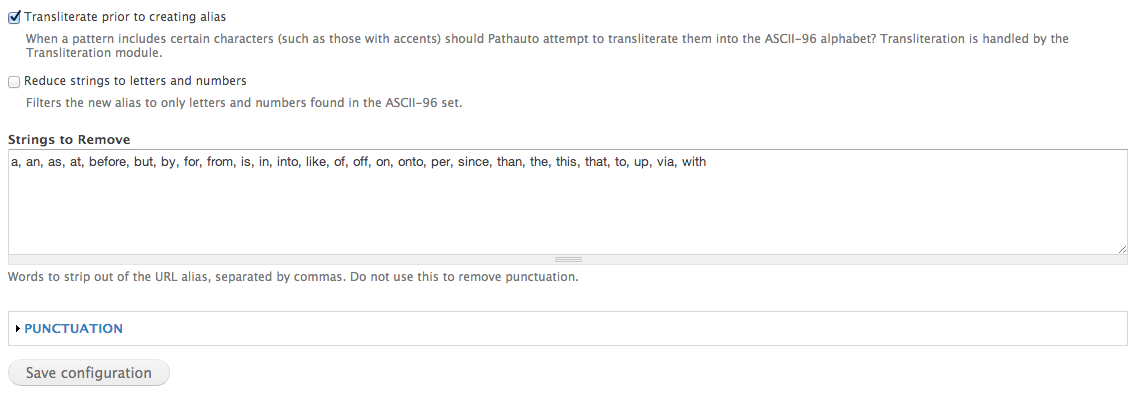
Transliterate prior to creating alias
Now when creating new content the urls will contain valid characters.
5. Updating already added content
To update urls for already existing content just go to Configuration -_> search and metadata -_> url aliases -_>Delete aliases Check the all aliases checkbox and click _Delete aliases now!
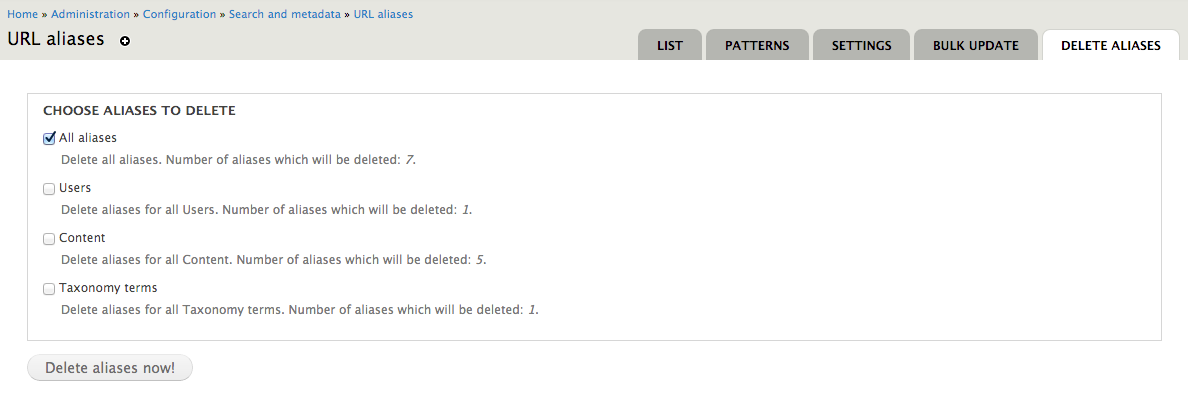
Url aliases
Now click on the BULK UPDATE tab and check all checkboxes you want to create an alias for and click Update
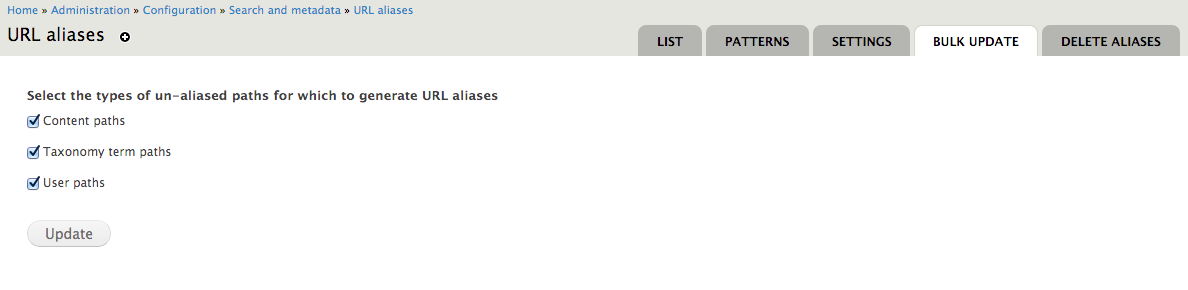
Bulk update