It’s time to add Electron app icons to the Electron tutorial app. For this we need a png-icon, a .icns for macs and a .ico for windows. For Linux we only need the pngs.
This code is added to the Electron tutorial app on github. Have a look at that repository if you would like to see all the source code.
The icons need to be set when creating a new BrowserWindow. But they need also be set when packaging the app. So by setting it in the code won’t make any difference when debugging your app with electron . That’s why we’ll first take a look at the code. Then we’ll take a look at packaging our app with electron-packager. But don’t worry, it’s an easy task.
1. Creating our icns and ico-files
First we need an icon that is 1024x1024 pixels large and saved in PNG. I’ve got one looking like this:

Electron tutorial app icon
Now go to ICONVERT ICONS and upload the PNG and the service will take care of creating the other icon-formats.
2. Folder structure
Now create a folder structure that looks like this:
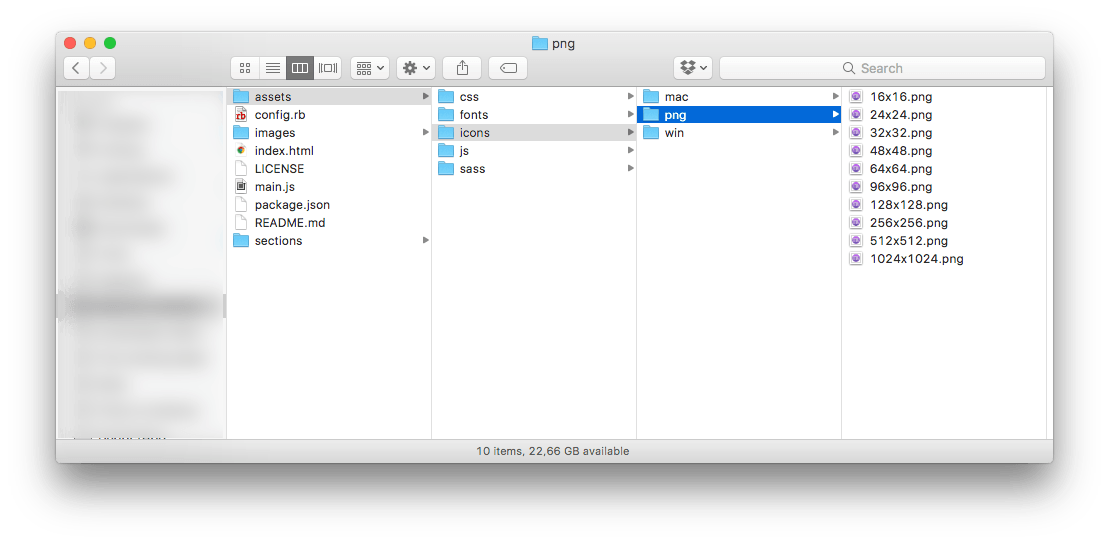
electron icon folder structure
Create a folder called icons in the assets folder. And in that folder create one folder called mac, one called png and one called win. Put the .icns-file into the mac folder, the pngs in the png folder and the .ico file in the win folder.
3. Updating main.js with path to icon
Open main.js and add icon: path.join(__dirname, 'assets/icons/png/64x64.png') when instantiating the BrowserWindow. But also var path = require(‘path’) at the top of the main.js.
const electron = require('electron')
var path = require('path')

...

 mainWindow = new BrowserWindow({titleBarStyle: 'hidden',
     width: 1281,
     height: 800,
     minWidth: 1281,
     minHeight: 800,
     backgroundColor: '#312450',
     show: false,
     icon: path.join(__dirname, 'assets/icons/png/64x64.png')
 })
At this point you can see the icon when running the app in Ubuntu. (Read how to get going with electron in ubuntu).
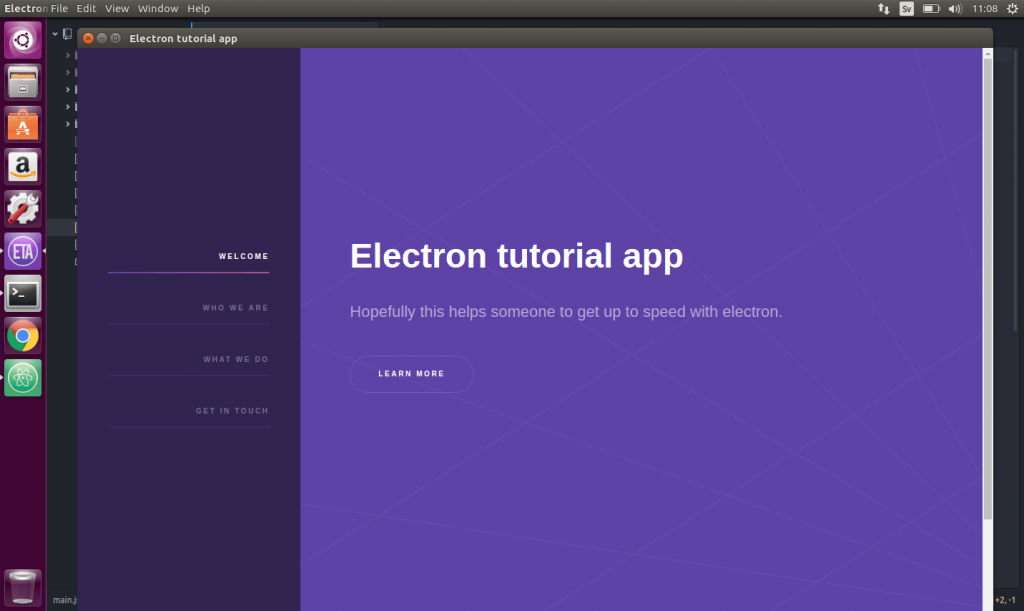
Electron icon ubuntu
The next step is to create an executable for MacOS and Windows with the icon we need to package the app. This next step is covered in Electron packager tutorial.