
This tutorial covers how to add markers on a Google map in an Ionic 2 app. We’ll continue where we left of the last with a Google map that is displayed in our app. If you haven’t already got that take a look at that tutorial first.
1. Markers JSON
To keep it simple we’ll store the marker information in a json file. Add a file called markers.json in the folder src/assets/data/ (create the folder data since it is not created by default).
The data we need at this point for a marker is, latitude, longitude and name. If you need help to find the latitude and longitude for your markers you can use maapcoordinates.net. My markers.json looks like this:
[
  {
    "latitude": 57.77504388,
    "longitude": 14.18557048,
    "name": "Kålgårdens rastgård"
  },
  {
    "latitude": 57.77474066,
    "longitude": 14.25457835,
    "name": "Öxnegården"
  },
  {
    "latitude": 57.7630705,
    "longitude": 14.0808624,
    "name": "Västersjön"
  }
]
2. Loading JSON in Ionic 2 and Angular 2
To load our .JSON file we’ll be using angular http and something called an Observable which we’ll map with rxjs/add/operator/map. You can read more about these classes in the Http class documentation of Angular 2
Start by importing these into src/pages/home/home.ts
import { Http } from '@angular/http';
import 'rxjs/add/operator/map';
Then we also need to add Http to our constructor:
constructor(public navCtrl: NavController, public http: Http) {
}
Now create a method called getMarkers in home.ts. In that method we’ll load the json file:
getMarkers() {
  this.http.get('assets/data/markers.json')
  .map((res) => res.json())
  .subscribe(data => {
  });
}
We are subscribing to an observable to get the markers. And in the subscribe method we will use the marker data to display them on the map.
3. Displaying markers on a Google map
Create a method called addMarkersToMap() in home.ts. In that method the markers will be looped through and added to the map.
addMarkersToMap(markers) {
  for(let marker of markers) {
    var position = new google.maps.LatLng(marker.latitude, marker.longitude);
    var dogwalkMarker = new google.maps.Marker({position: position, title: marker.title});
    dogwalkMarker.setMap(this.map);
  }
}
Now we need to call this method from the subscribe callback of getMarkers():
getMarkers() {
  this.http.get('assets/data/markers.json')
  .map((res) => res.json())
  .subscribe(data => {
    this.addMarkersToMap(data);
  });
}
That is all that is needed to display a marker on a Google map in Ionic 2 with Angular 2.
The finished home.ts looks like this:
import { Component, ViewChild, ElementRef } from '@angular/core';
import { NavController } from 'ionic-angular';
import { Http } from '@angular/http';
import 'rxjs/add/operator/map';

declare var google;

@Component({
  selector: 'page-home',
  templateUrl: 'home.html'
})
export class HomePage {

  @ViewChild('mapContainer') mapContainer: ElementRef;
  map: any;

  constructor(public navCtrl: NavController, public http: Http) {
  }

  ionViewWillEnter() {
    this.displayGoogleMap();
    this.getMarkers();
  }

  displayGoogleMap() {
    let latLng = new google.maps.LatLng(57.8127004, 14.2106225);

    let mapOptions = {
      center: latLng,
      disableDefaultUI: true,
      zoom: 11,
      mapTypeId: google.maps.MapTypeId.ROADMAP
    }
    this.map = new google.maps.Map(this.mapContainer.nativeElement, mapOptions);
  }

  getMarkers() {
    this.http.get('assets/data/markers.json')
    .map((res) => res.json())
    .subscribe(data => {
      this.addMarkersToMap(data);
    });
  }

  addMarkersToMap(markers) {
    for(let marker of markers) {
      var position = new google.maps.LatLng(marker.latitude, marker.longitude);
      var dogwalkMarker = new google.maps.Marker({position: position, title: marker.title});
      dogwalkMarker.setMap(this.map);
    }
  }
}
4. Result
The Dogwalk app will now look like this:
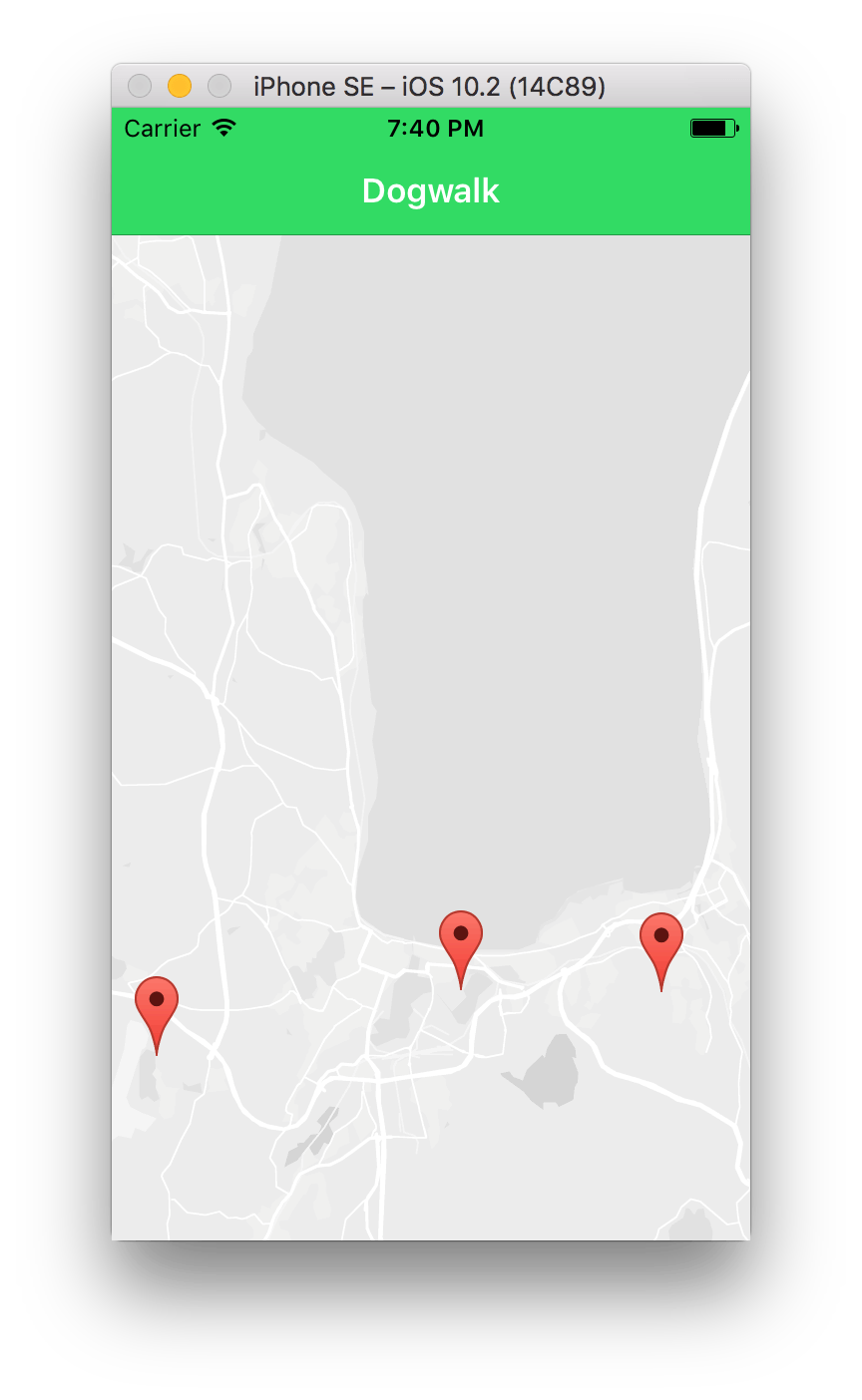
Ionic2 Google maps markers - iOS Simulator displaying dogwalk app with markers
In the next tutorial we look at Ionic splash screen and icon. Or check this tutorial out if you are looking to add an infoWindow