
Record audio with Soundflower on Mac. It’s free and open source. I use this as an alternative to Loopback, which is great but has a limitation to record only 20 minutes in the free version. But you can also buy it but it was to expensive in my opinion. To record audio we also use Quicktime player in this tutorial.
Installation
Download the latest release from Github which is 2.0b2 when this post is written, and run the installer.
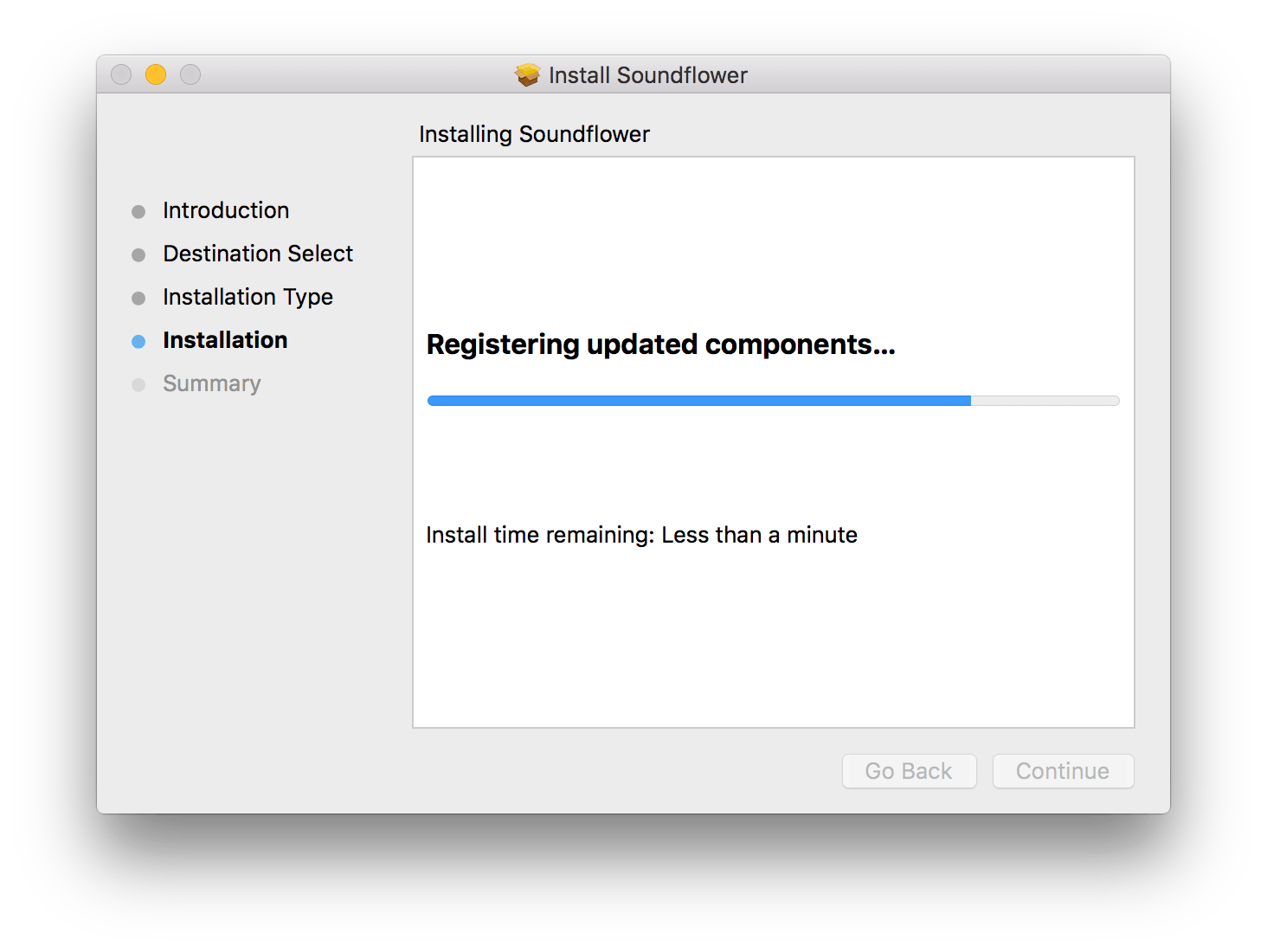
Soundflower - installation
If you alt click on the sound icon you can see 4 new devices has been added for us to use.
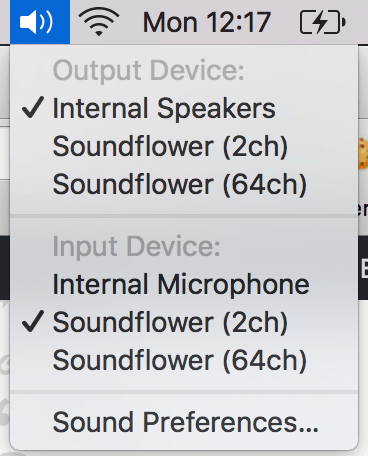
Soundflower - menu
Set up audio device
Go into Audio midi setup and click on the plus sign in the bottom left corner and select Create multi output device
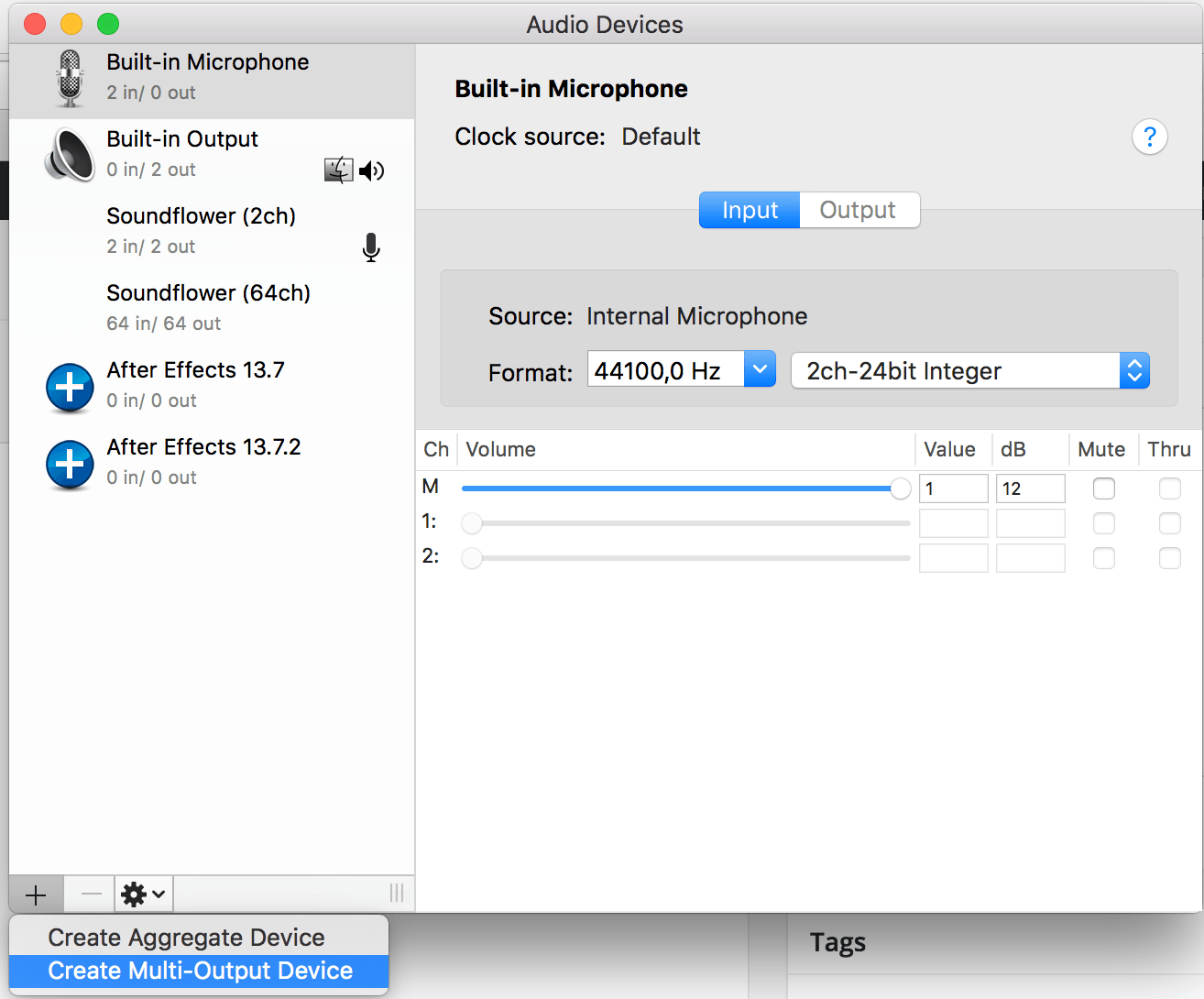
Audio midi setup
Now select Built in output and Soundflower (2ch). Next click on the gear in the bottom left corner and select Use this device for sound output.
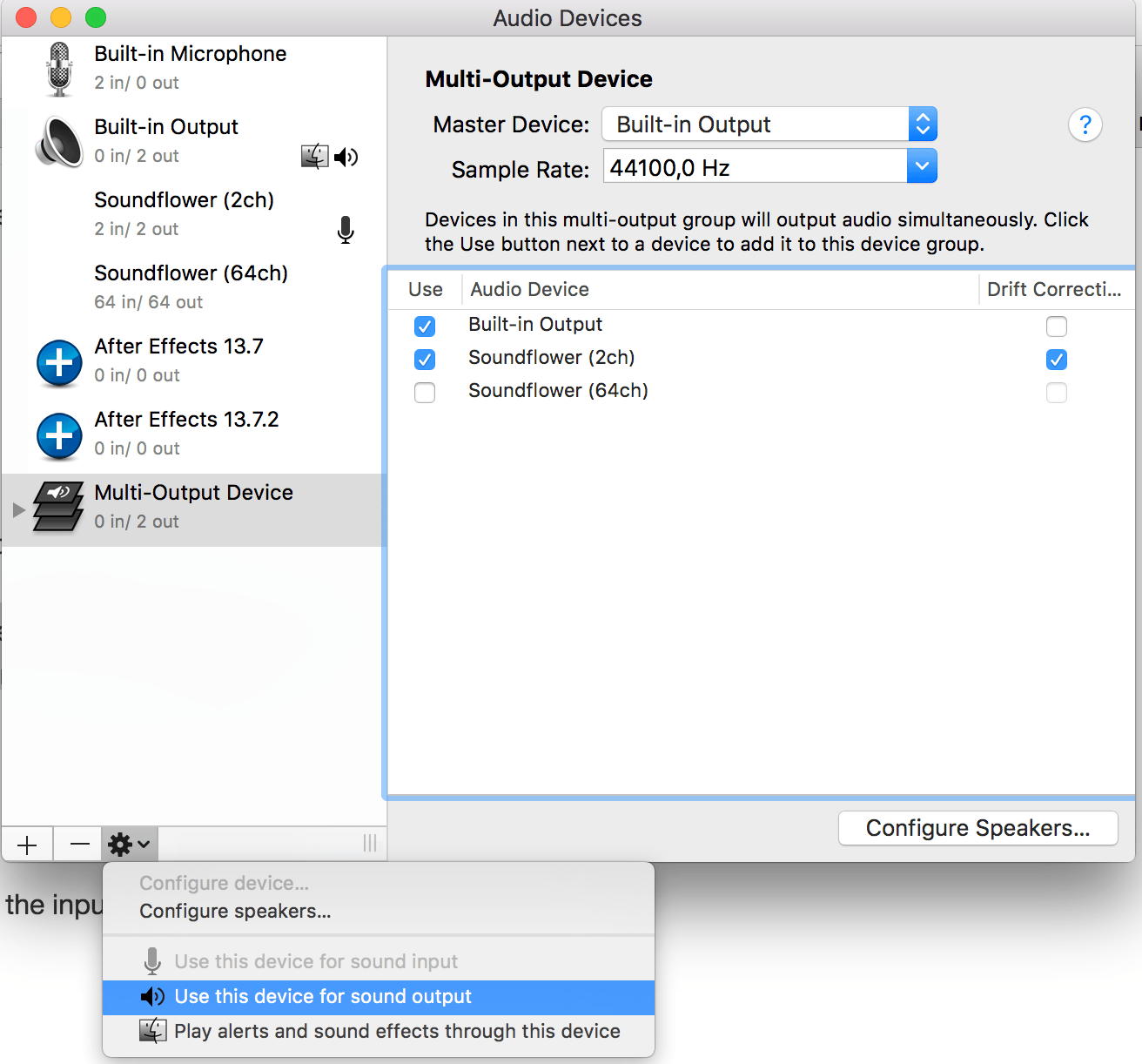
Multi output device
Record with quicktime player
Start quick time player and select File -> New audio recording. Next click on the down arrow next to the record button. Then select Soundflower (2ch).
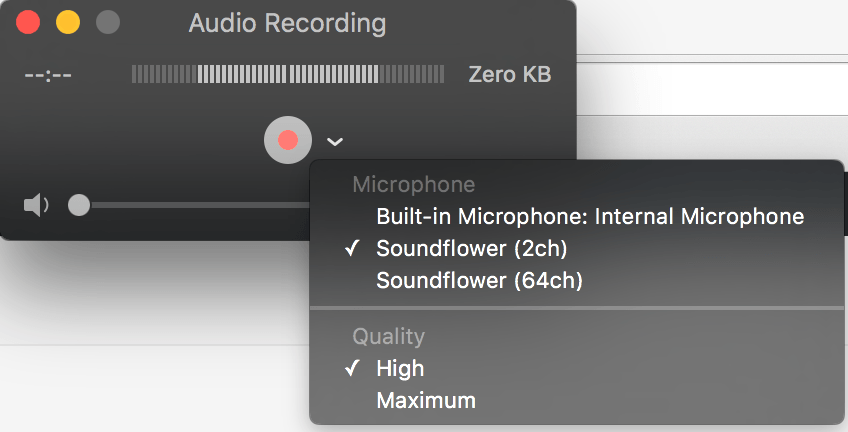
Quicktime player
Now start the audio you’d like to record and click on the record button in quick time and you are done!
Uninstall Soundflower
To uninstall Soundflower you open or download the .dmg that Soundflower came in again.
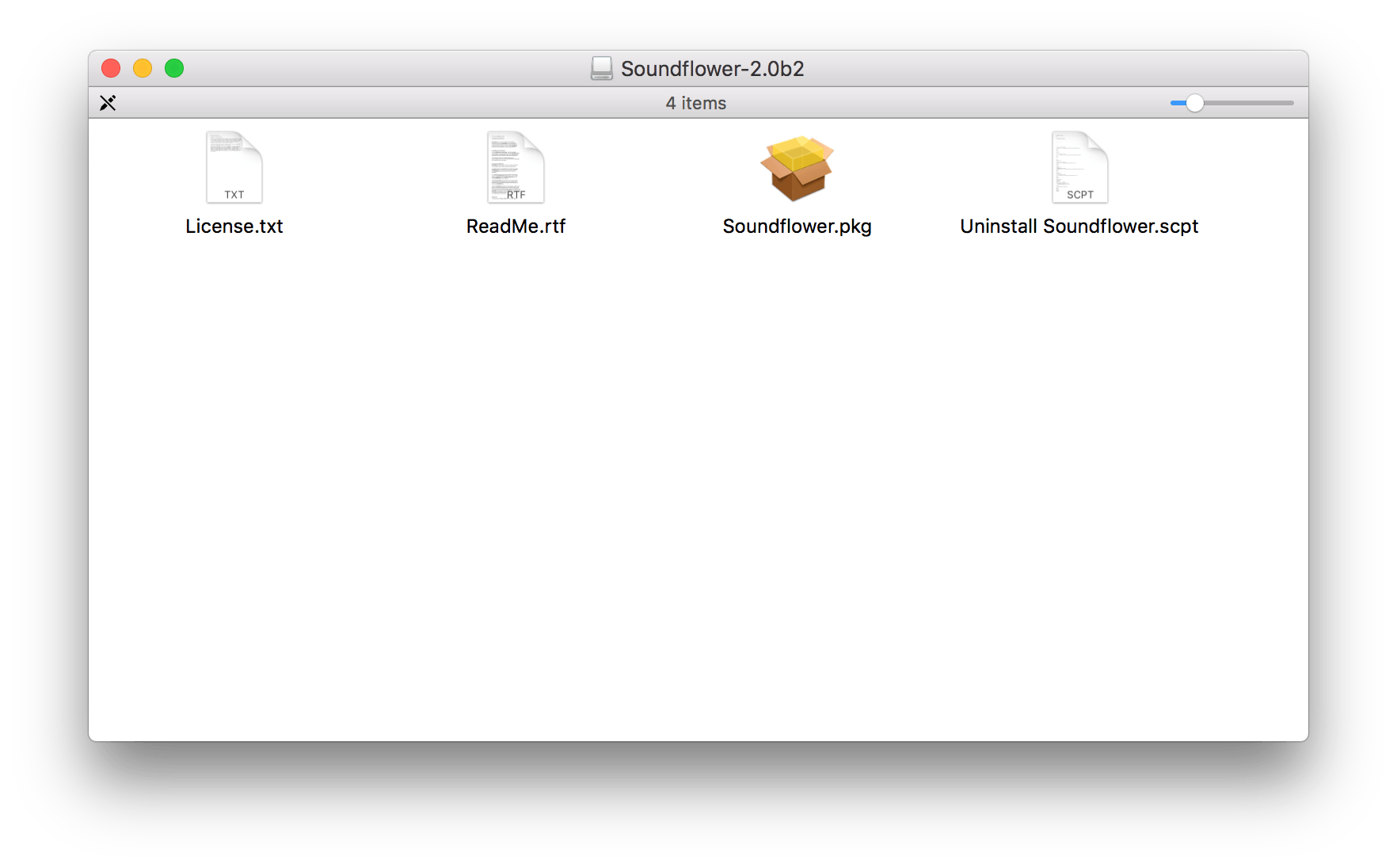
soundflower dmg
This time double click on Uninstall Soundflower.scpt and the script editor will open it. Then click on run script and enter administrator password when prompted. A reboot may be required to get rid of the audio devices after the uninstall.
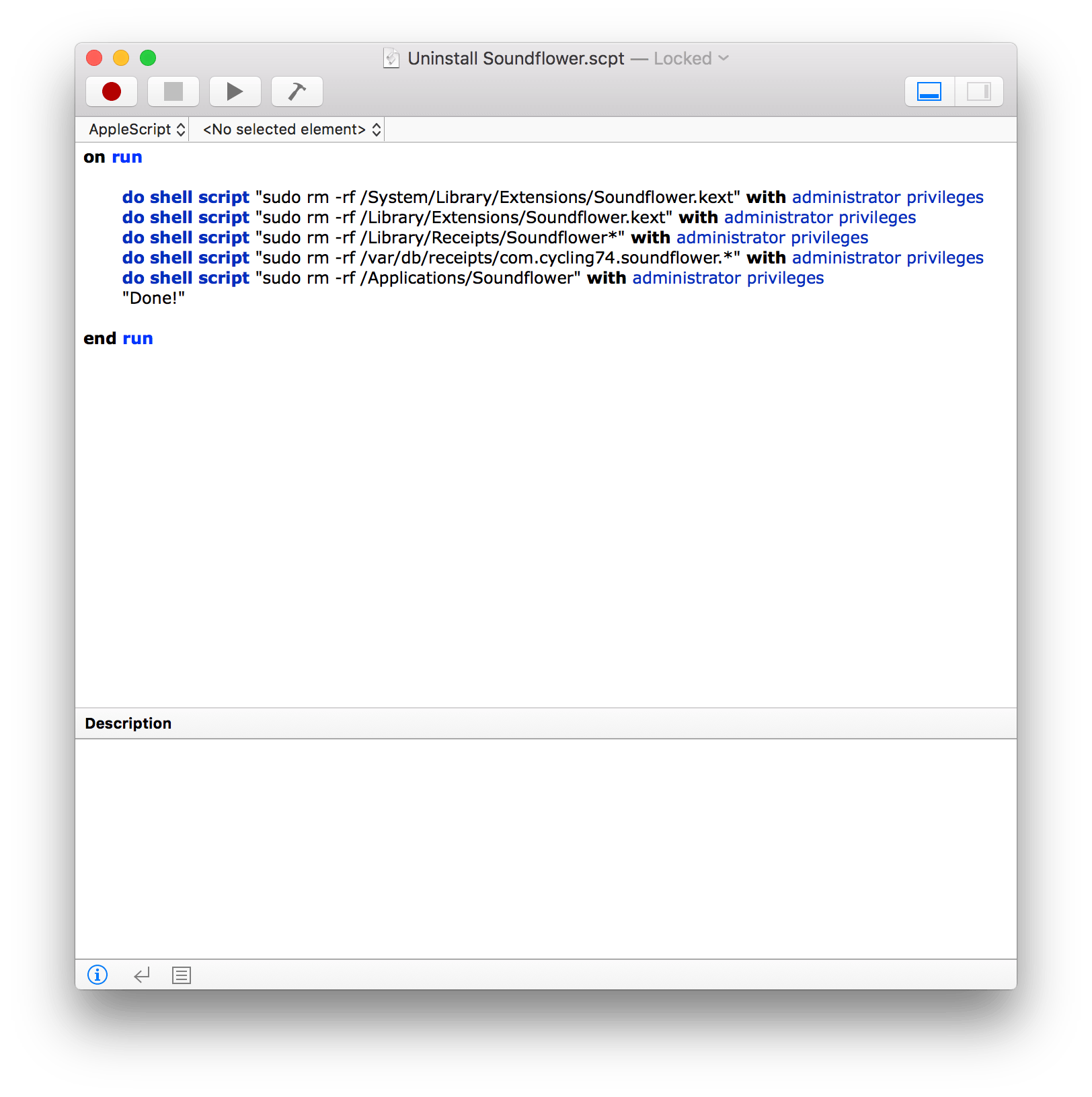
Script editor