
With Static HTML: iframe tabs you can add static html to a Facebook page. This simple walkthrough(hello world) assumes you know how to create a page or already have a page to add a tab to and also simple html and css knowledge.
1. Add static HTML:iframe tabs to your page
Log in to your facebook account where you are admin for a page. Then browse to this url: http://apps.facebook.com/static_html_plus/ and click Add static html to a page. Then choose which of your pages to add it to.
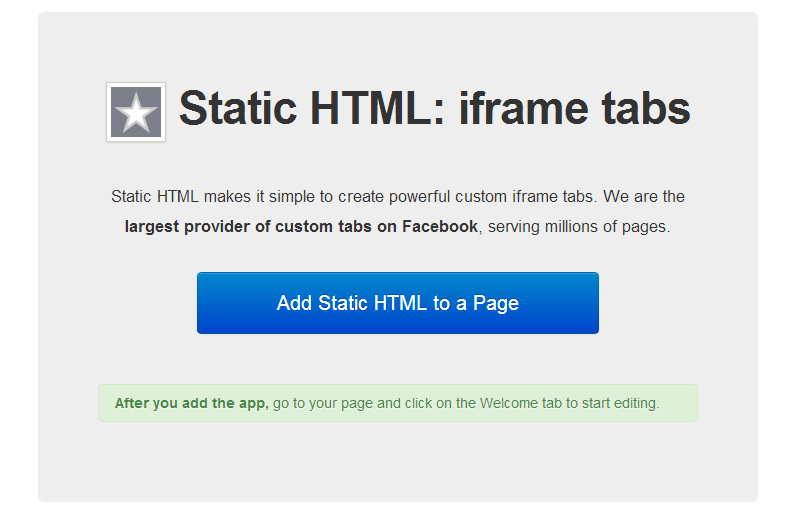
Add static html
When this is done you will be redirected to your page and a tab name welcome has been added. In the next step we will change the picture and rename the tab.
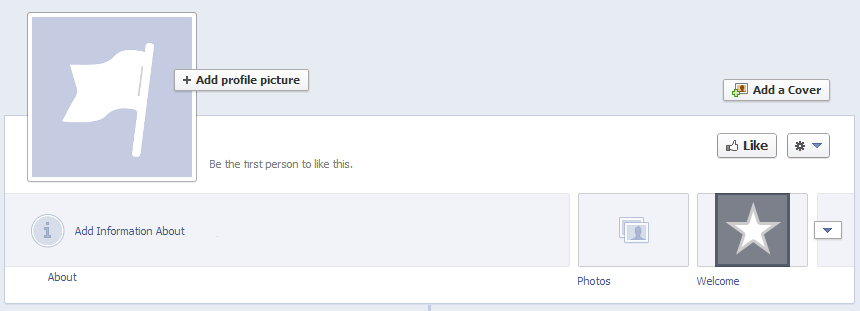
Startpage
2. Update name and image of the new tab
Go to Admin Panel -> Edit Page -> and click on Update Info. Then click on apps in the menu to the left.
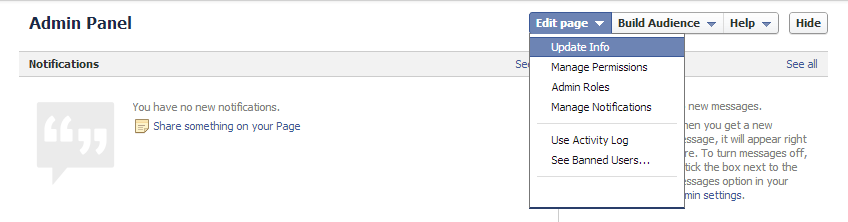
Admin panel
When you’ve clicked on apps you will se all the added apps for your page. Click on Edit Settings for the _ Static HTML: iframe tabs _ app.
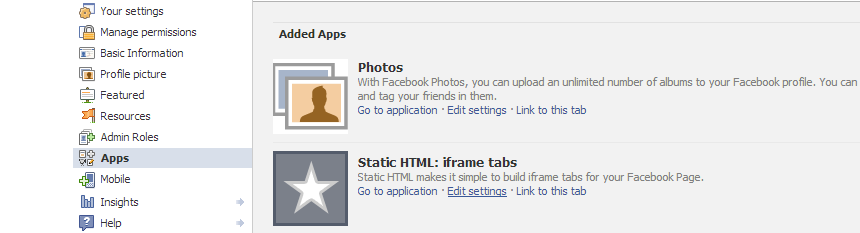
Static html settings
A new window will appear where you can set Custom tab image and Custom tab name. When you are done with uploading a image and setting the name of the tab click Save and then click OK.
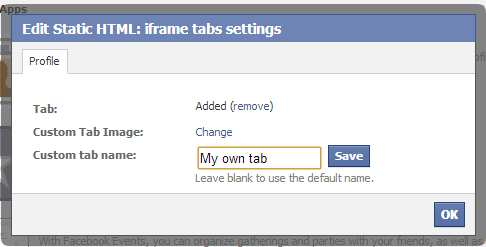
iframe tabs settings
3. Adding content
Go to the start of the page and click on the new tab, which you just renamed and edited the image of. In this case My own tab.
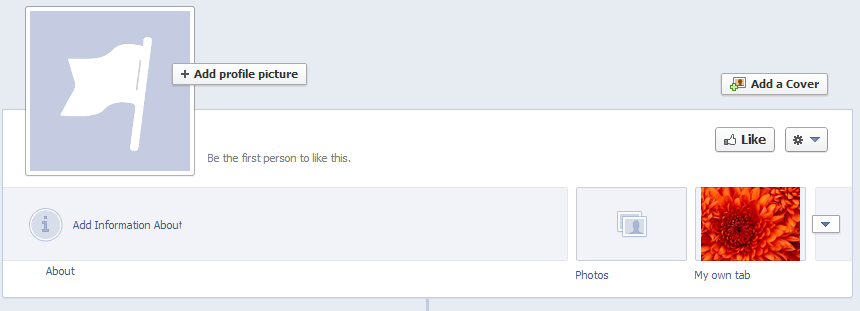
My own tab
You will now see the startscreen of the new tab. Where you can edit settings and add more tabs if you want to. But you can also choose to edit public content and fan content. Public content is shown for everyone and fan content is shown for people who has clicked like on your page. Click on Edit next to Public content.

Edit tab
Next we will get a question which kind of tab/app we want to create. In this tutorial we choose HTML i recommend you play around with the other ones to but for now click on Use this app under html and click on _done _ at the top of the page.
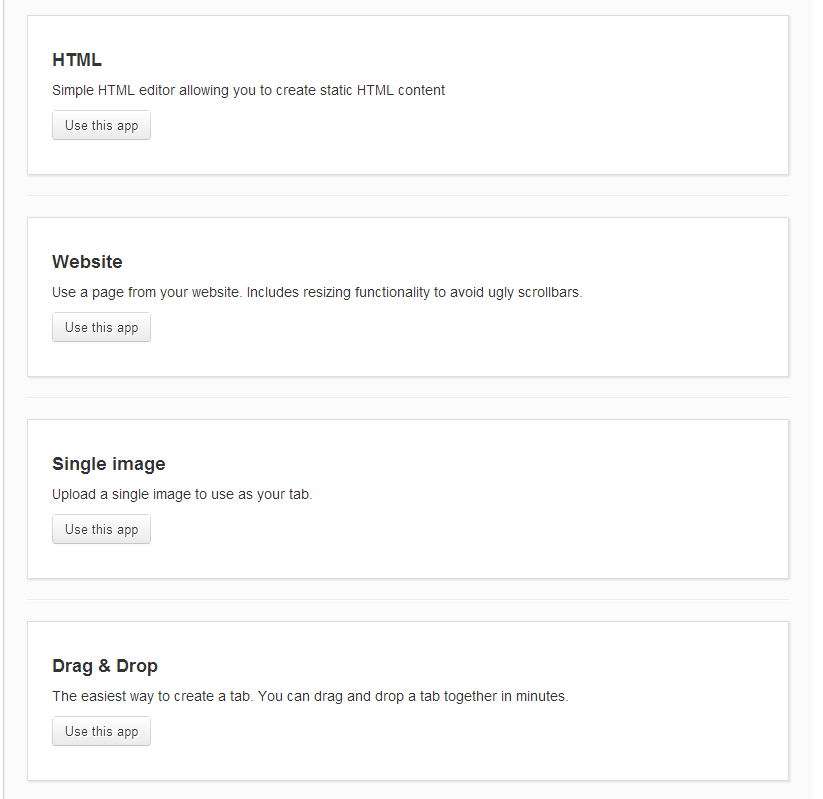
apps
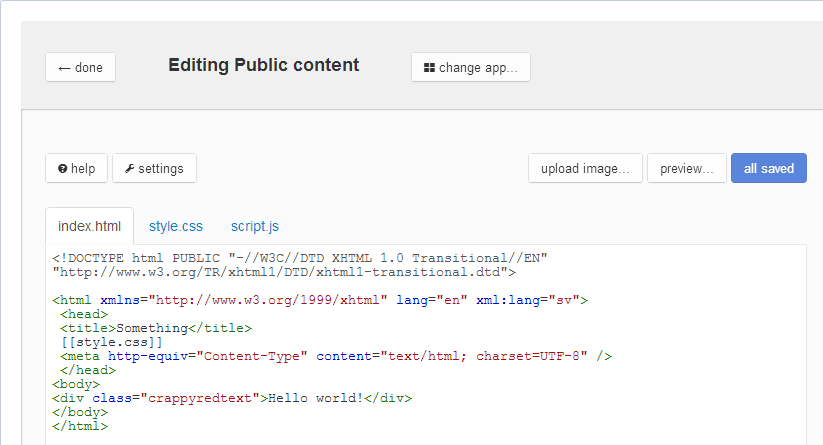
In the _ index.html tab_ we add this code and click on save and publish : the [[style.css]] tag indicates that we want to use the css found in the style.css tab.
<!DOCTYPE html PUBLIC "-//W3C//DTD XHTML 1.0 Transitional//EN" "http://www.w3.org/TR/xhtml1/DTD/xhtml1-transitional.dtd">

<html xmlns="http://www.w3.org/1999/xhtml" lang="en" xml:lang="sv">
 <head>
 <title>Something</title>
 [[style.css]]
 <meta http-equiv="Content-Type" content="text/html; charset=UTF-8" />
 </head>
<body>
<div class="crappyredtext">Hello world!</div>
</body>
</html>
And in the style.css tab you add this simple css class and click on save and publish:
.crappyredtext
{
  color:red;
}
Content
Now if you go back to the start page and click on your tab you will see Hello World! in red.