How to install Ubuntu on a VirtualBox virtual machine. It’s very simple and won’t cost you a dime. Don’t forget to install the guest additions at the end.
Virtualbox
Virtualbox is a virtualization software that is free and open source. Start by downloading and installing it. It runs on Windows, MacOS, Linux distributions and Solaris.
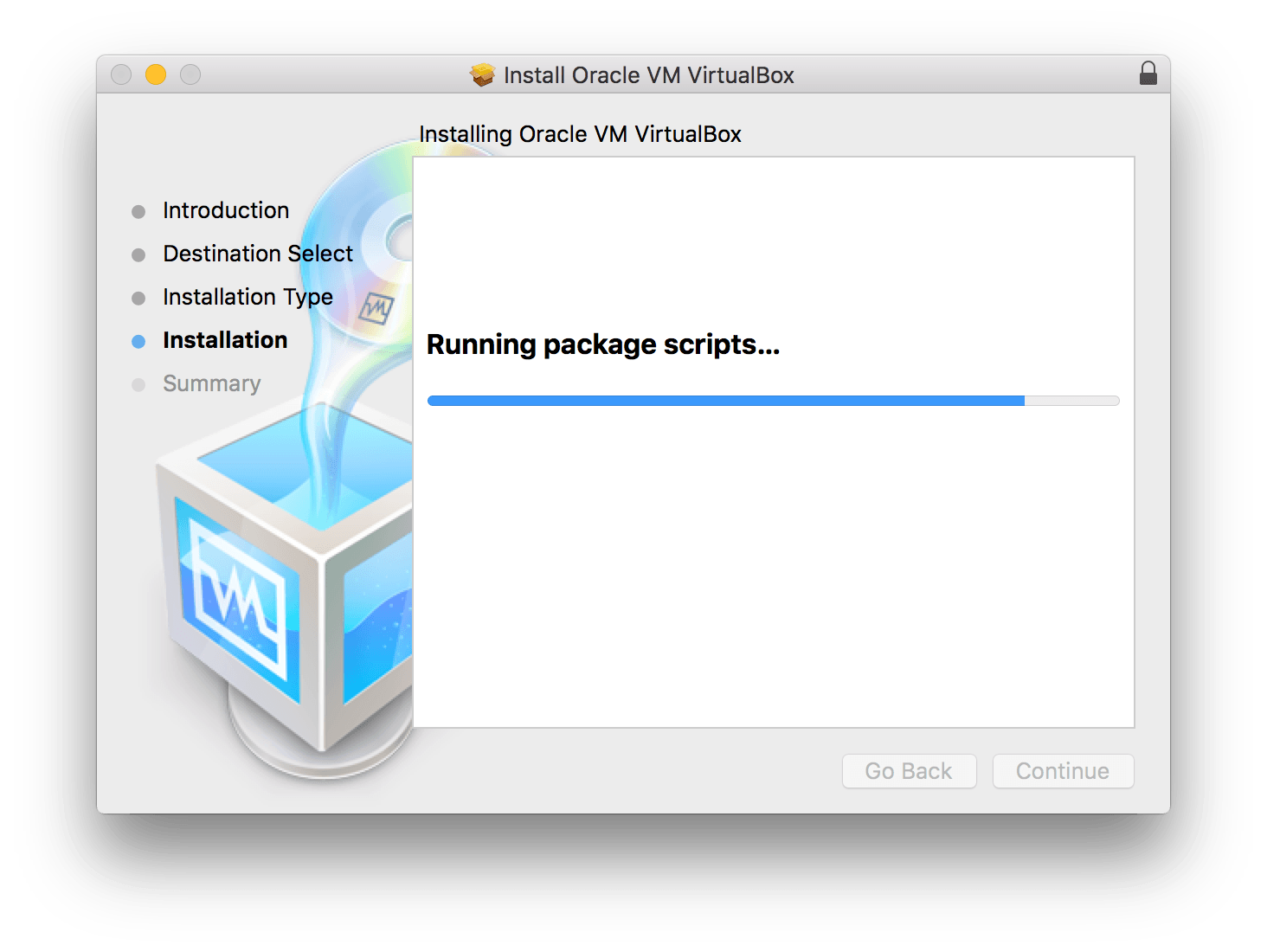
Install virtualbox
Ubuntu
Ubuntu is a popular Linux distribution for desktops. It’s free and open source. So go ahead and download Ubuntu.
1. Creating a virtual machine in Virtualbox
Fire up VirtualBox and click on the New button in the top left menu. When i started to type Ubuntu, VirtualBox automatically set type to linux and version to Ubuntu.
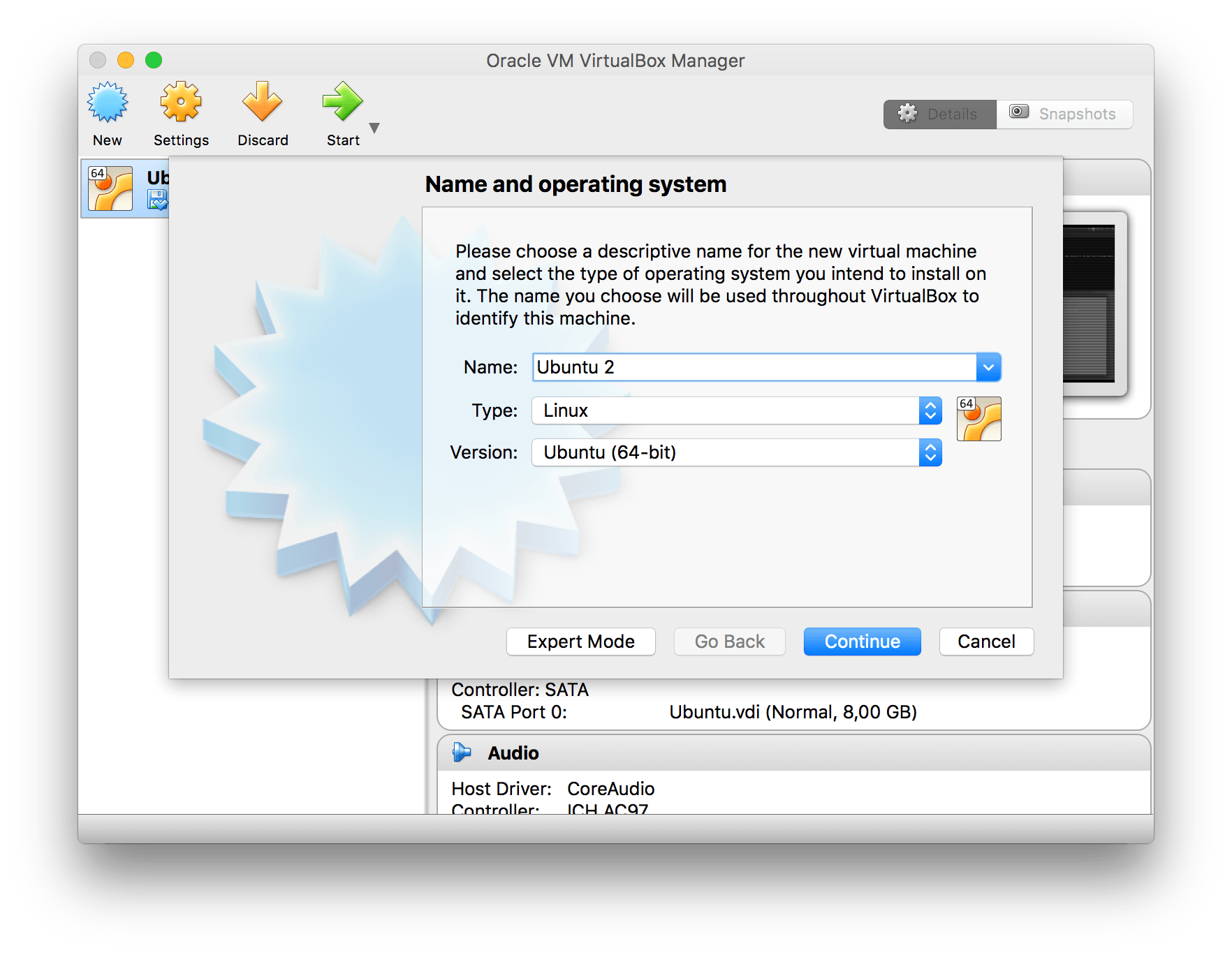
Name and operating system - VirtualBox
Next step is to set the amount of memory that will be allocated. VirtualBox will recommend you a number. But you can choose anything you’d like. This can be changed later if the virtual machine runs slow.
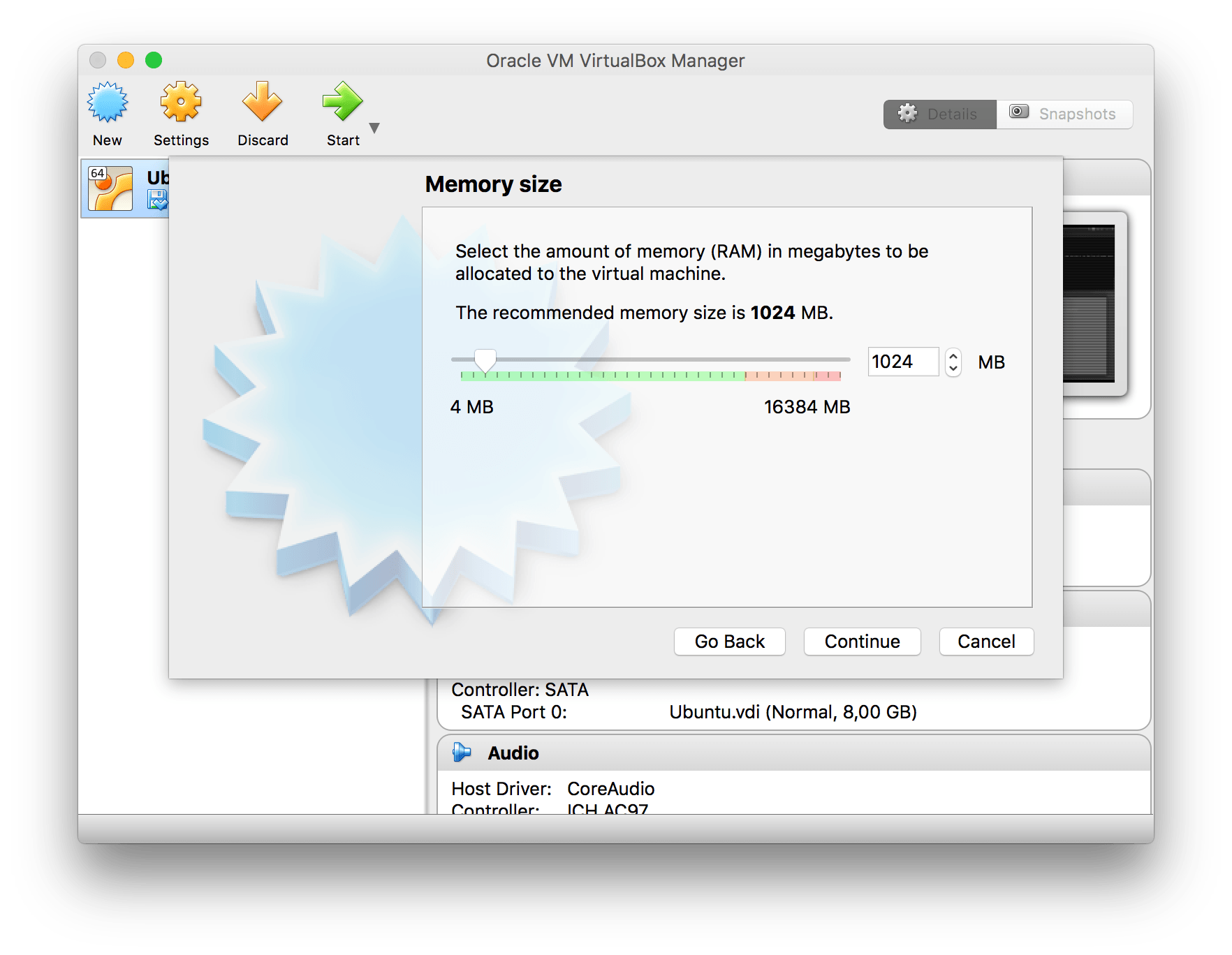
Memory size - VirtualBox
Next you select a size of the hard disk. 8 gb that VirtualBox recommends will work fine. Now click Create.
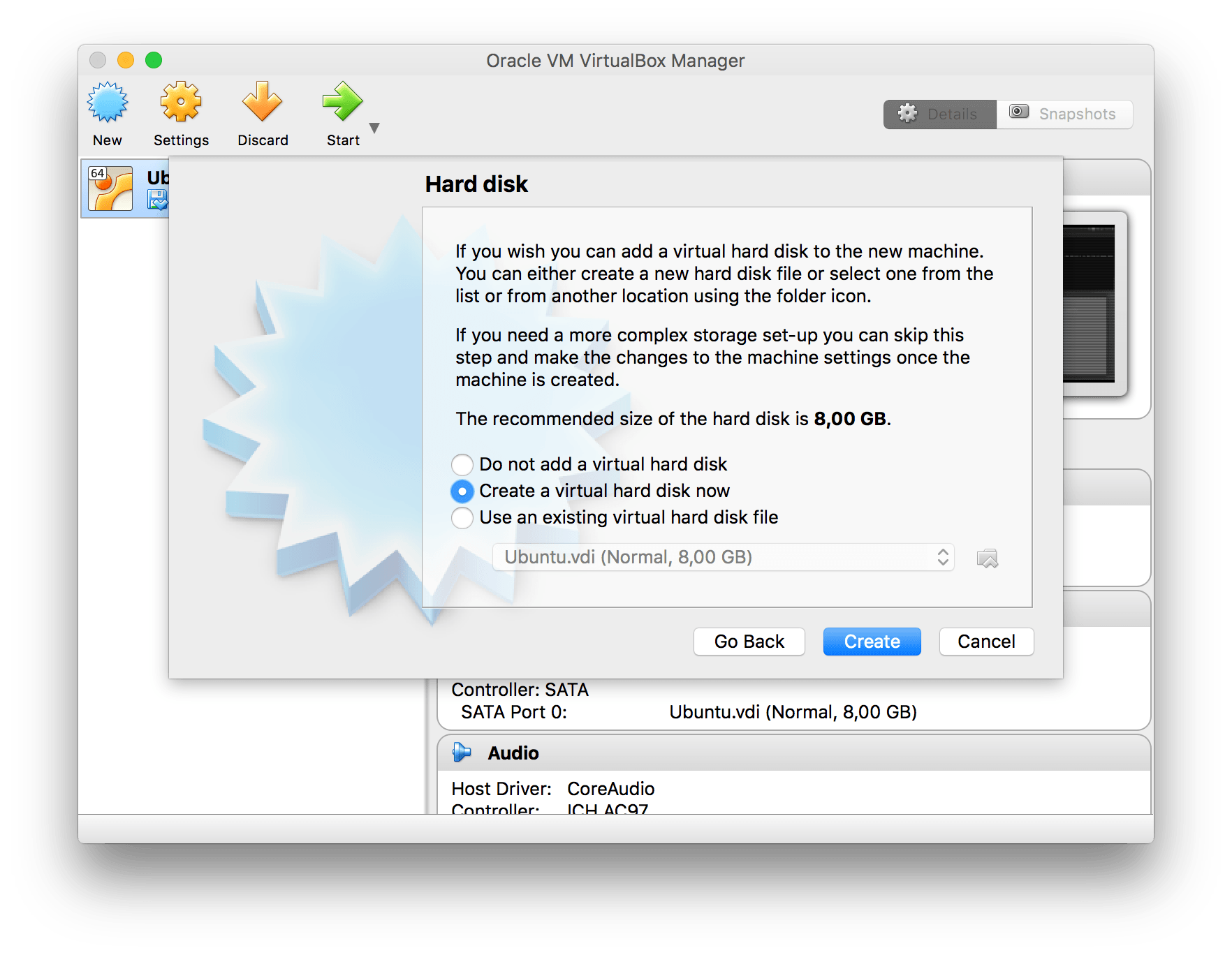
Harddisk size - VirtualBox
Select VDI as hard disk file type
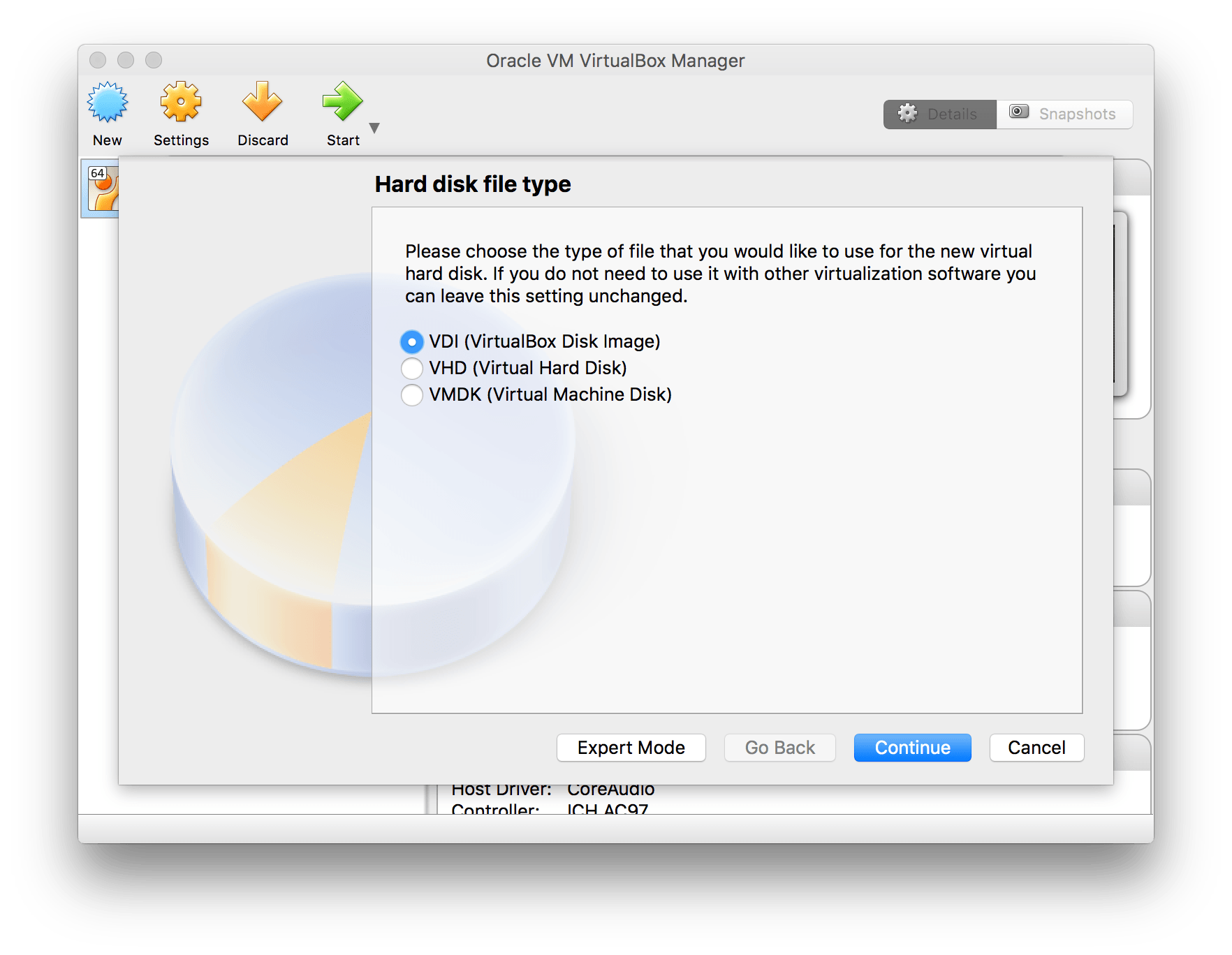
Hard disk file type - VirtualBox
Next use dynamically allocated when asked.
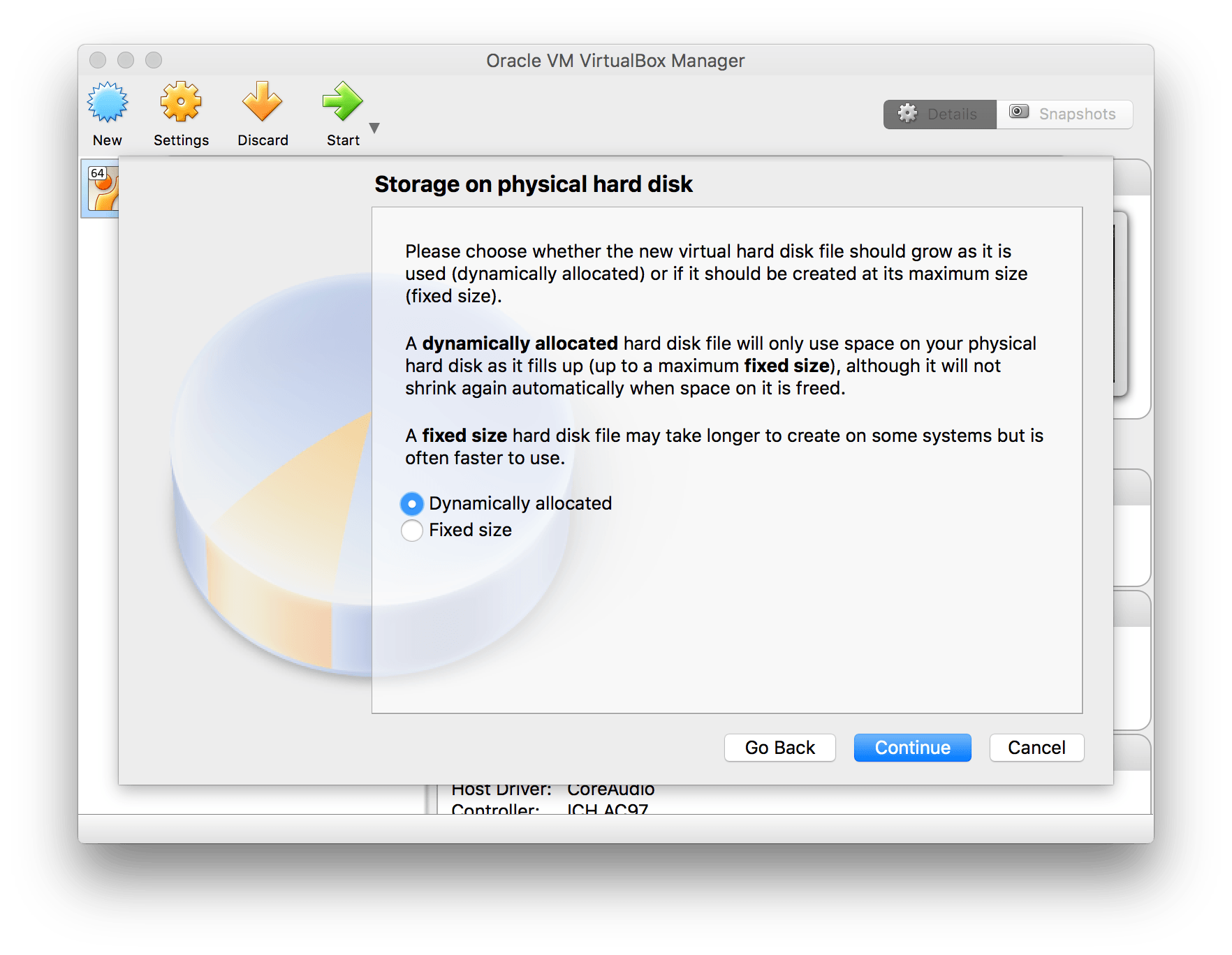
Storage on physical hard disk - VirtualBox
Set the disk size to the standard 8GB
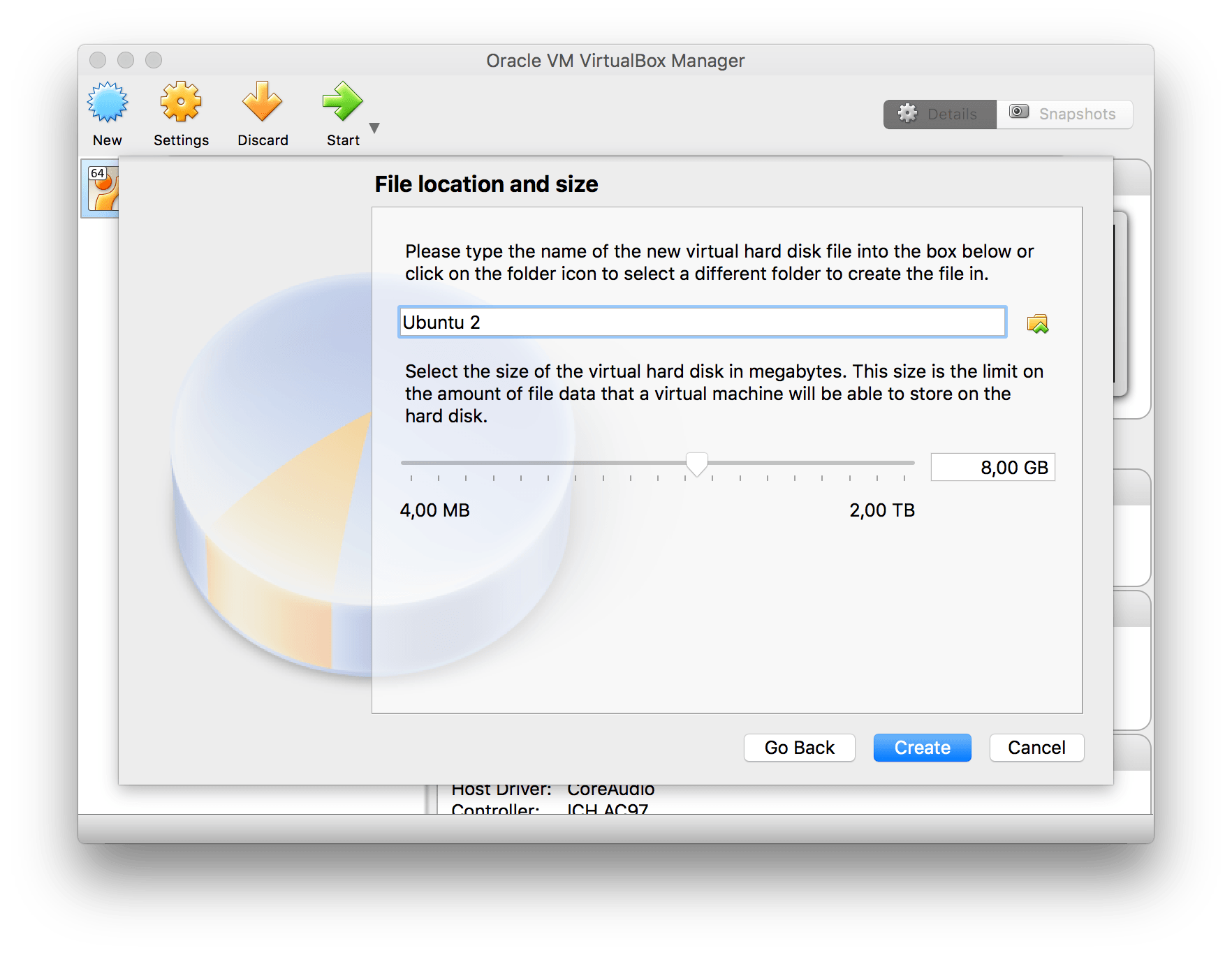
Ubuntu file location - VirtualBox
2. Installing Ubuntu on the new virtual machine
Now when the virtual machine is created it’s time to mount the Ubuntu ISO and install it.
Click on settings with the newly created virtual machine selected.
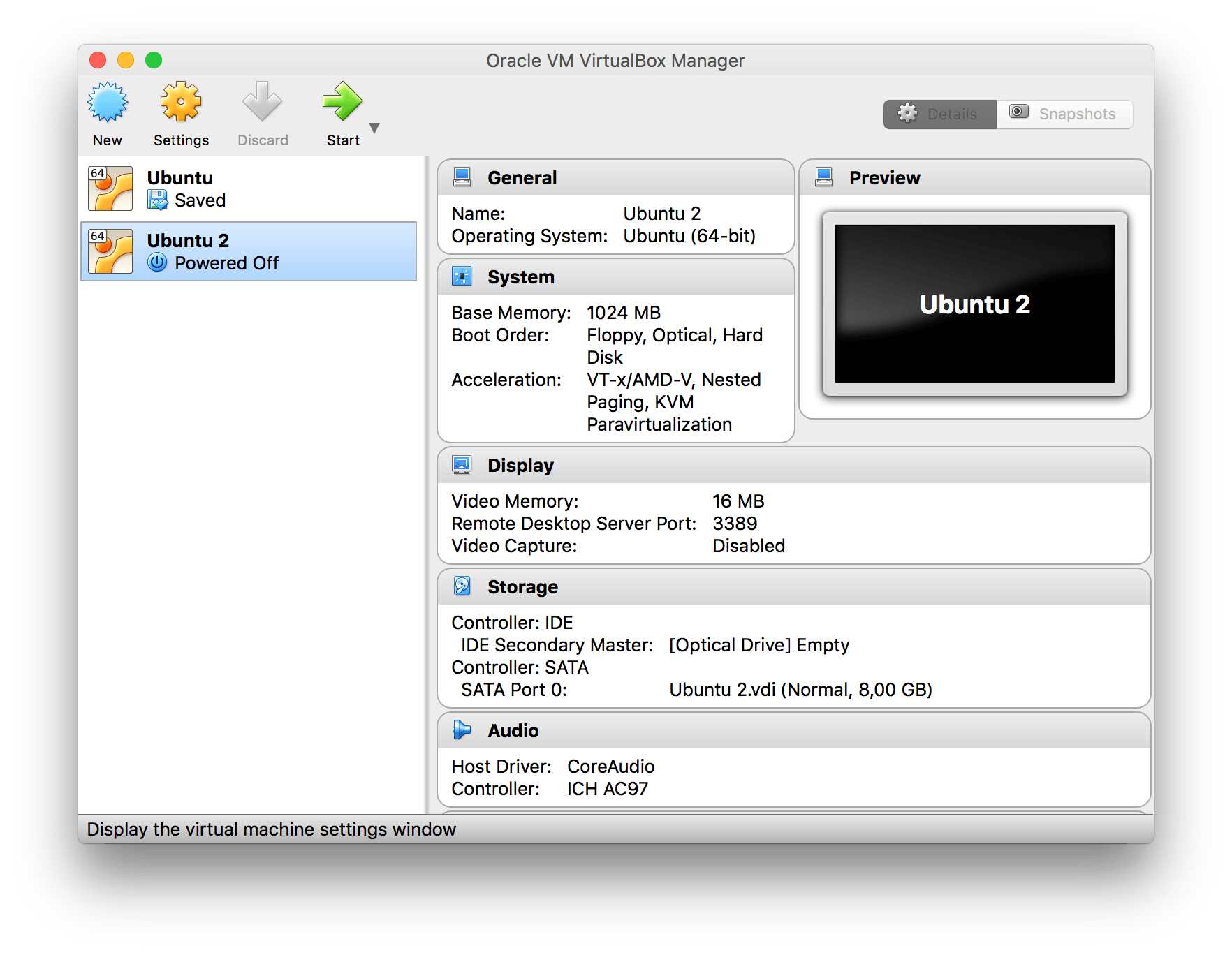
Settings - VirtualBox
Now go to the storage pane and select the IDE controller, then click on the CD-icon to the right and click Choose Virtual Optical Disk File… and select the ubuntu ISO.
When you are done you can click on OK to go back to the main screen of VirtualBox.
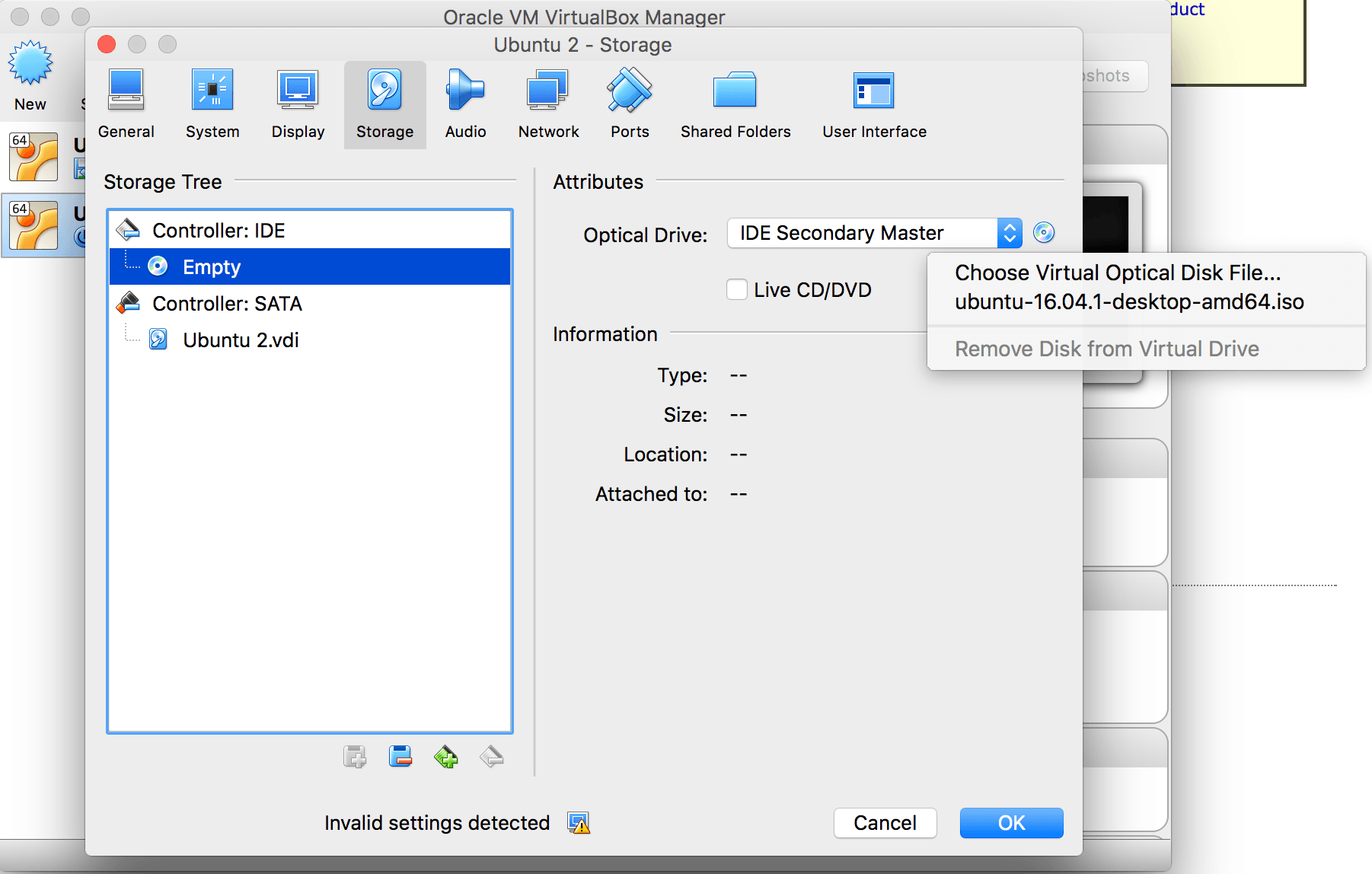
Select iso - VirtualBox
Now start the virtual machine and the ubuntu ISO will be booting up to something like this:
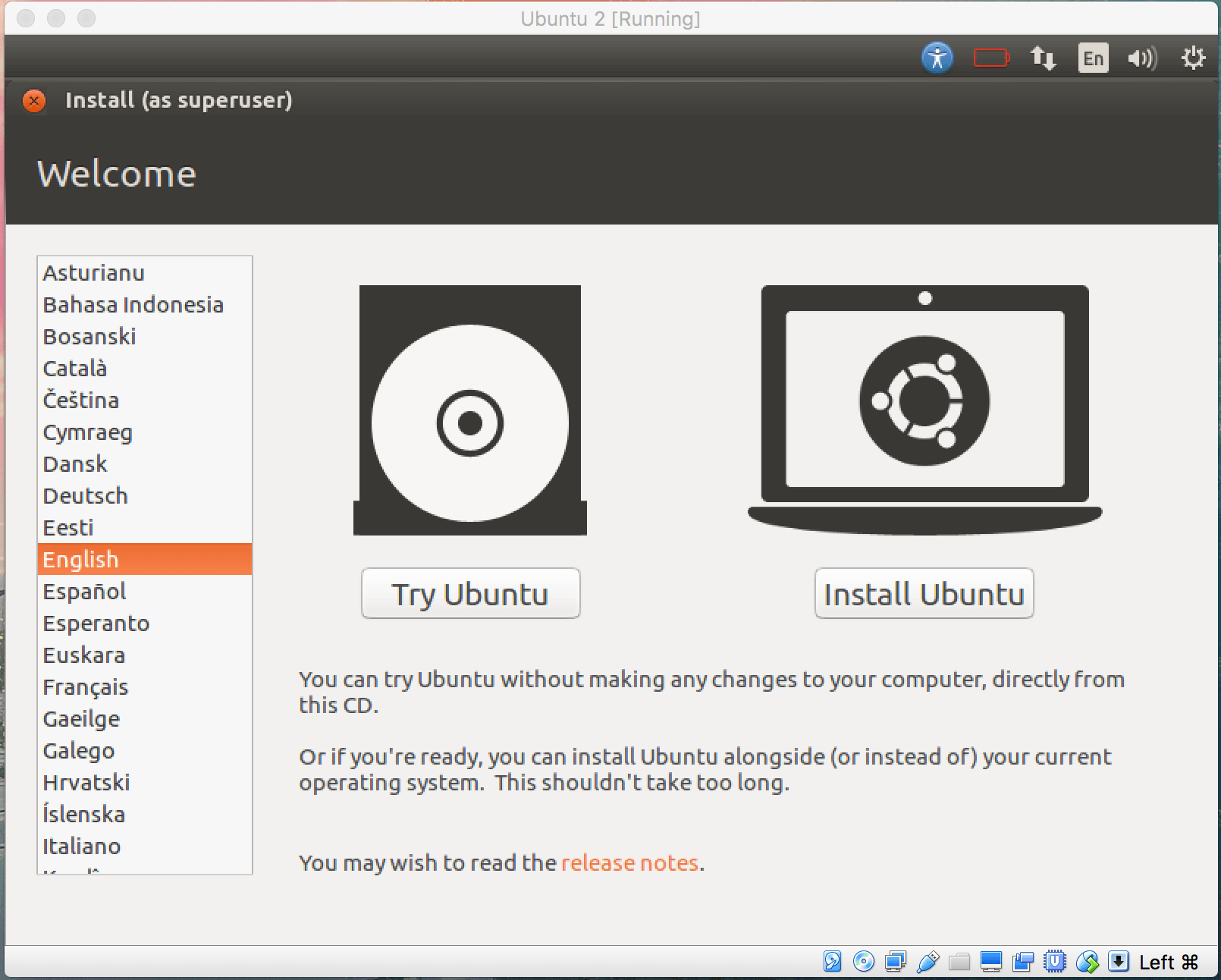
Install Ubuntu - VirtualBox
Now you click on… wait for it…. Install Ubuntu. I’m not going to guide you through this install. For 99%(this number was picked out of the blue) of you it’s only to click on continue until it’s installed.
When the installation is done Ubuntu will be asked to be restarted. Click on that button. Then when the message “please remove installation medium” is displayed, VirtualBox has already unmounted the ISO, so you can hit ENTER directly.
Ubuntu installation is done!
3. Installing VirtualBox guest additions
To share folders between the host and the guest machine we will need to install the guest additions.
Go to Devices in the VirtualBox menu and click on Insert guest additions CD image.
Click on run when Ubuntu asks you if you want to install the software.
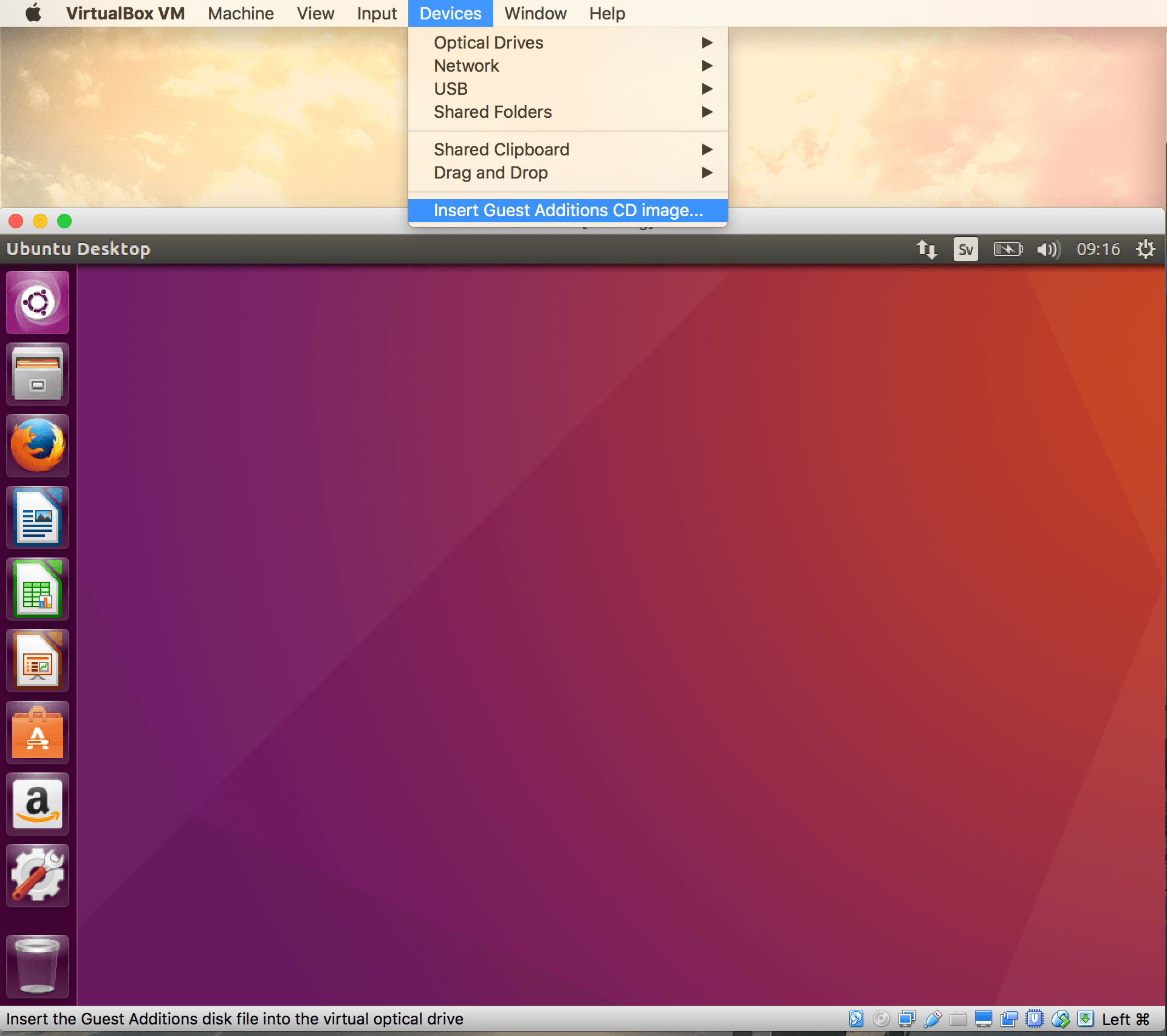
Insert guest additions - VirtualBox