
After switching from Wordpress to Jekyll I got a lot faster load times. But I also got to type more to get a post published. This can be eased by using snippets in the Atom editor in which i write my posts.
A snippet is a small region of code that you use often. In Atom and many other editors these can be inserted by typing a few words and then let the editor fill in the rest by pushing tab.
Jekyll example
In Jekyll you start all posts with defining a few variables in front matter. This posts front matter look like this:
---
layout: post
title: The snippet to create all snippets in Atom editor
categories:
- Miscellaneous
image:
  source: /wp-content/uploads/2017/01/the-snippet-to-create-all-snippets-in-atom-editor.png
  width: 1200
  height: 627
excerpt: You can use a snippet to create snippets in Atom Editor. It's useful for long expressions you use often.
---
Instead of typing that every time I create a post I can create a snippet that automatically finishes all that text after i type --- and push tab.
Creating a snippet in Atom
Open up the snippets.cson file by clicking Atom->Snippets... in the menu.
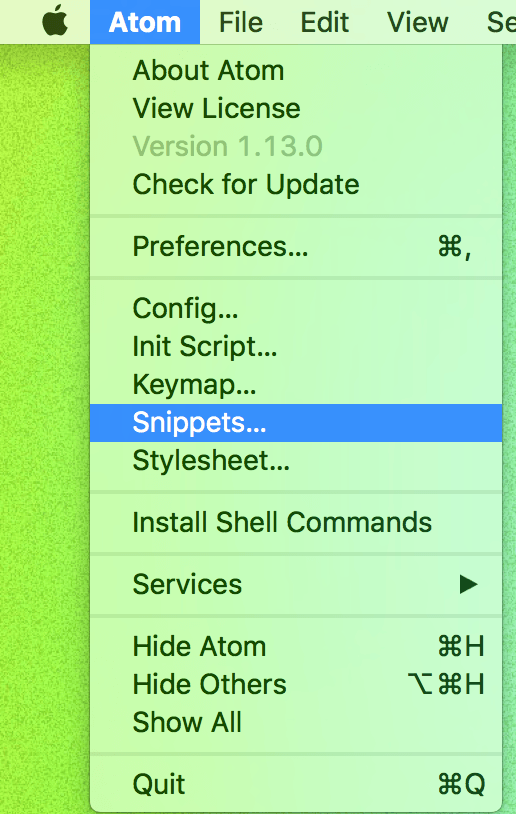
Atom snippets menu
Now type snip and push tab to get a scaffold for creating your own snippet. When first pushing tab this is what we’ll get:
'.source.js':
  'Snippet Name':
    'prefix': 'Snippet Trigger'
'body': 'Hello World!'- the .source.js is setting in which files the snippet will be active. In this case javascript files.
- ‘Snippet Name’ is the name of the snippet.
- Prefix is what will trigger the snippet.
- Body is what the trigger will be replaced with.
This is an example of a snippet that works in markdown files to add front matter variables:
'.source.gfm':
  'front matter':
    'prefix': '---'
    'body': """---
      layout: post
      title: Proposales Electron app - My first freelance assignment
      categories:
      - Miscellaneous
      image:
        source: /wp-content/uploads/2017/01/proposales-electron-app-first-freelance.png
        width: 1200
        height: 627
      excerpt:
      ---
      """
A snippet with tab stops
In this blog i also use a lot of code highlighting. To highlight code with Jekyll you type something like this:
{% highlight javascript %}
  let variable = "text";
{% endhighlight %}
instead of always adding a javascript snippet i can add a tab stop to this snippet so that i always get to type what language i am highlighting. That snippet would look like this:
'.source.gfm':
  'highlight':
    'prefix': 'high'
    'body' : """{% highlight $1 %}
    $2
    {% endhighlight %}"""
That was a quick introduction to snippets in Atom. Check out the documentation to learn more.