
In this post we’ll take a look at installing ASP.NET core and Visual Studio code on Linux Mint.
1. Installing .NET CORE
To install .NET Core I downloaded the X64 Binary and ran these commands in a console:
cd Downloads
mkdir -p $HOME/dotnet && tar zxf dotnet-sdk-2.2.202-linux-x64.tar.gz -C $HOME/dotnet
export DOTNET_ROOT=$HOME/dotnet
export PATH=$PATH:$HOME/dotnet
After that to verify the installation you can type dotnet:
$ dotnet --version
2.2.202
2. Install Visual Studio Code
Go to https://code.visualstudio.com/ and select the .deb package for installation.
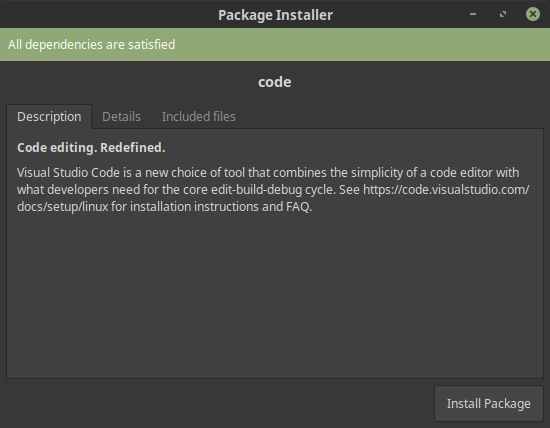
Click on Install Package - Visual studio Code debian package
After installing the package Visual Studio code will show up in the menu:
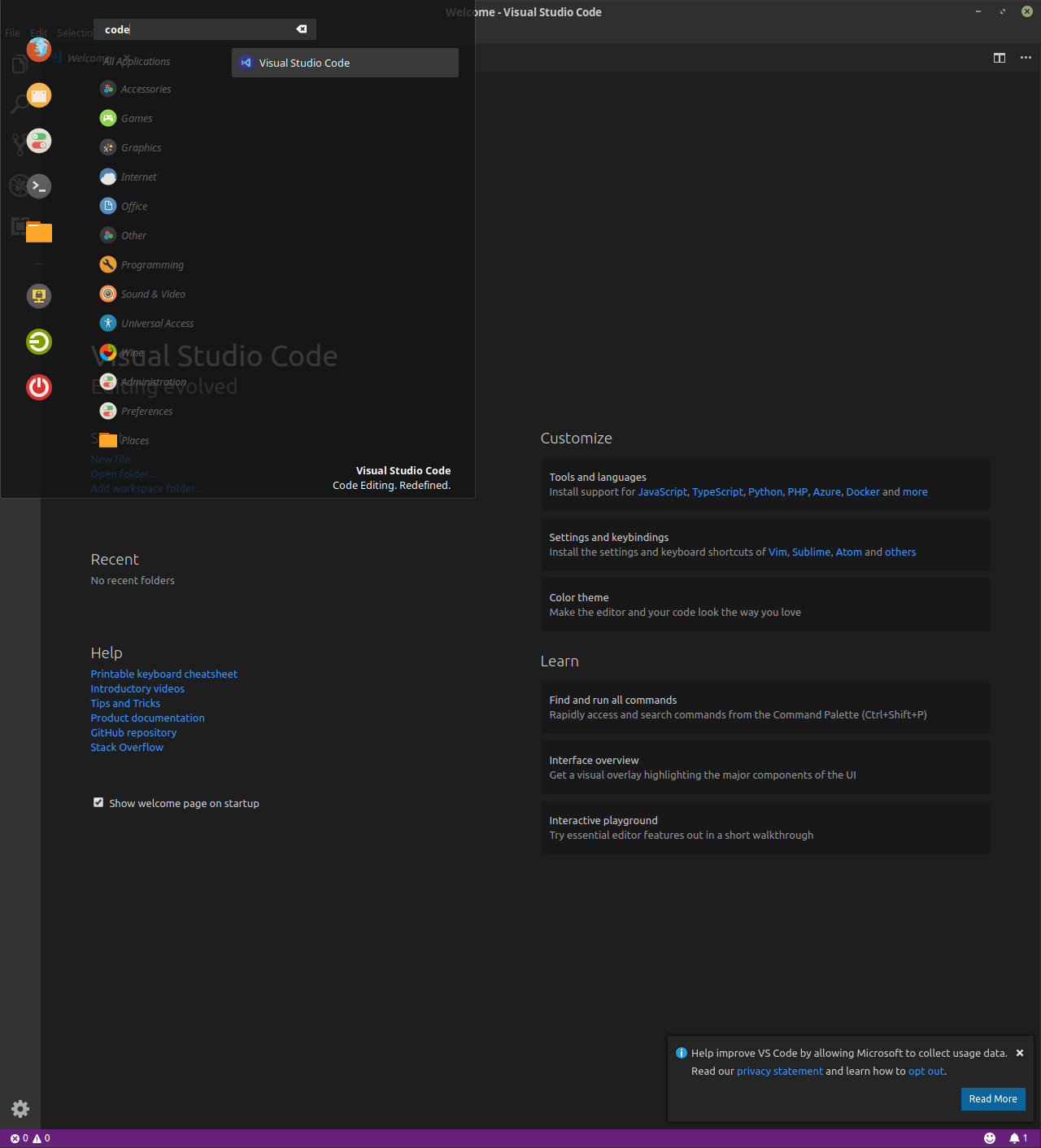
Visual studio code in the menu
3. Install the C# Extension
Click on the extensions icon to the left and search for C#. Then click install.
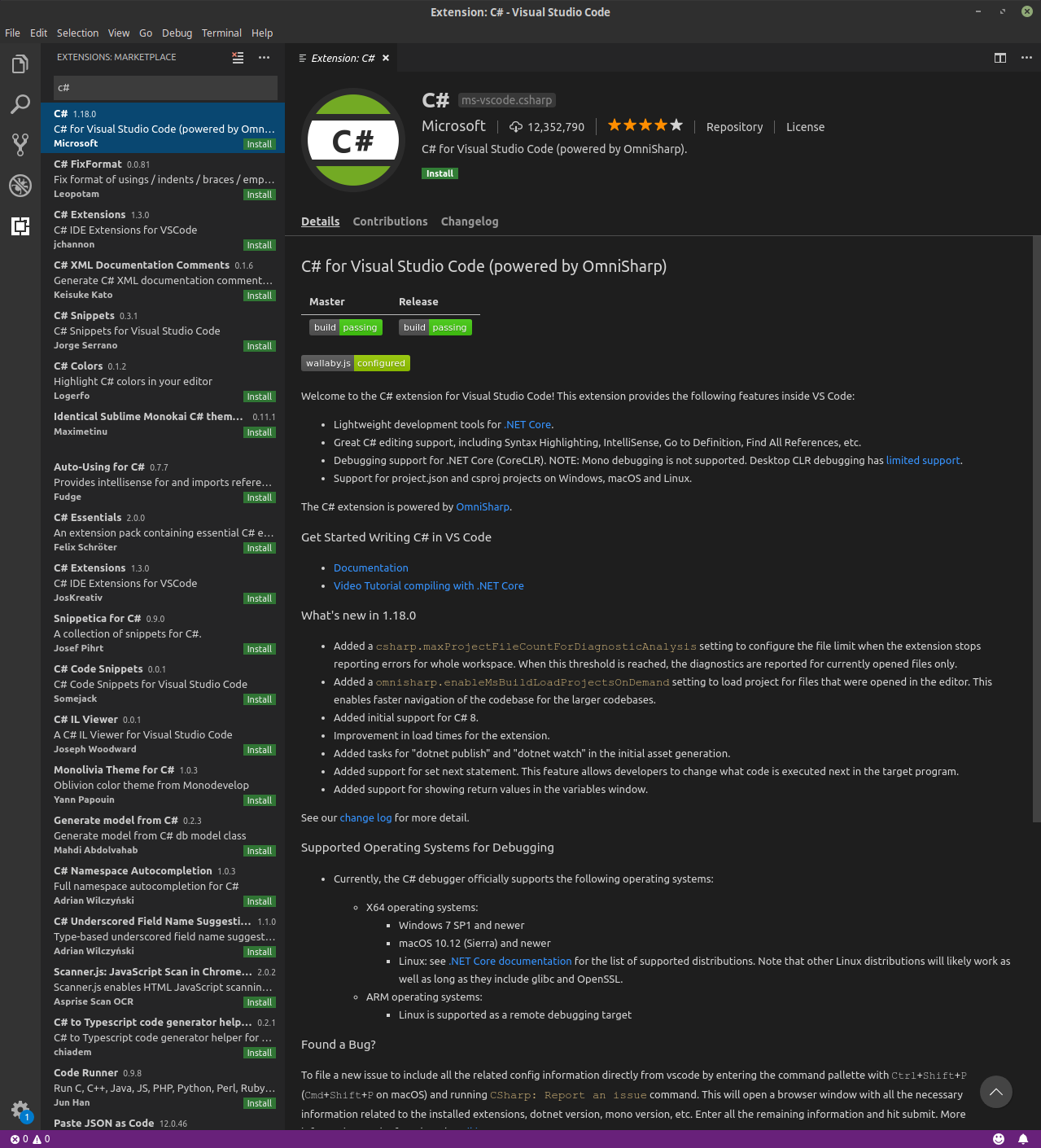
Visual studio csharp extension
4. Creating an ASP.NET Core Project
Now its time to create an ASP.NET MVC project from the terminal. These commands are copied from the Microsoft documentation
dotnet new mvc -o MvcMovieThis creates a new mvc project in a folder called MvcMovie.
We can use the command line to open the newly created project in VS Code:
code -r MvcMovieAnd to run the application run:
dotnet run --project  MvcMovie/

... omitted text from command

Hosting environment: Development
Now listening on: https://localhost:5001
Now listening on: http://localhost:5000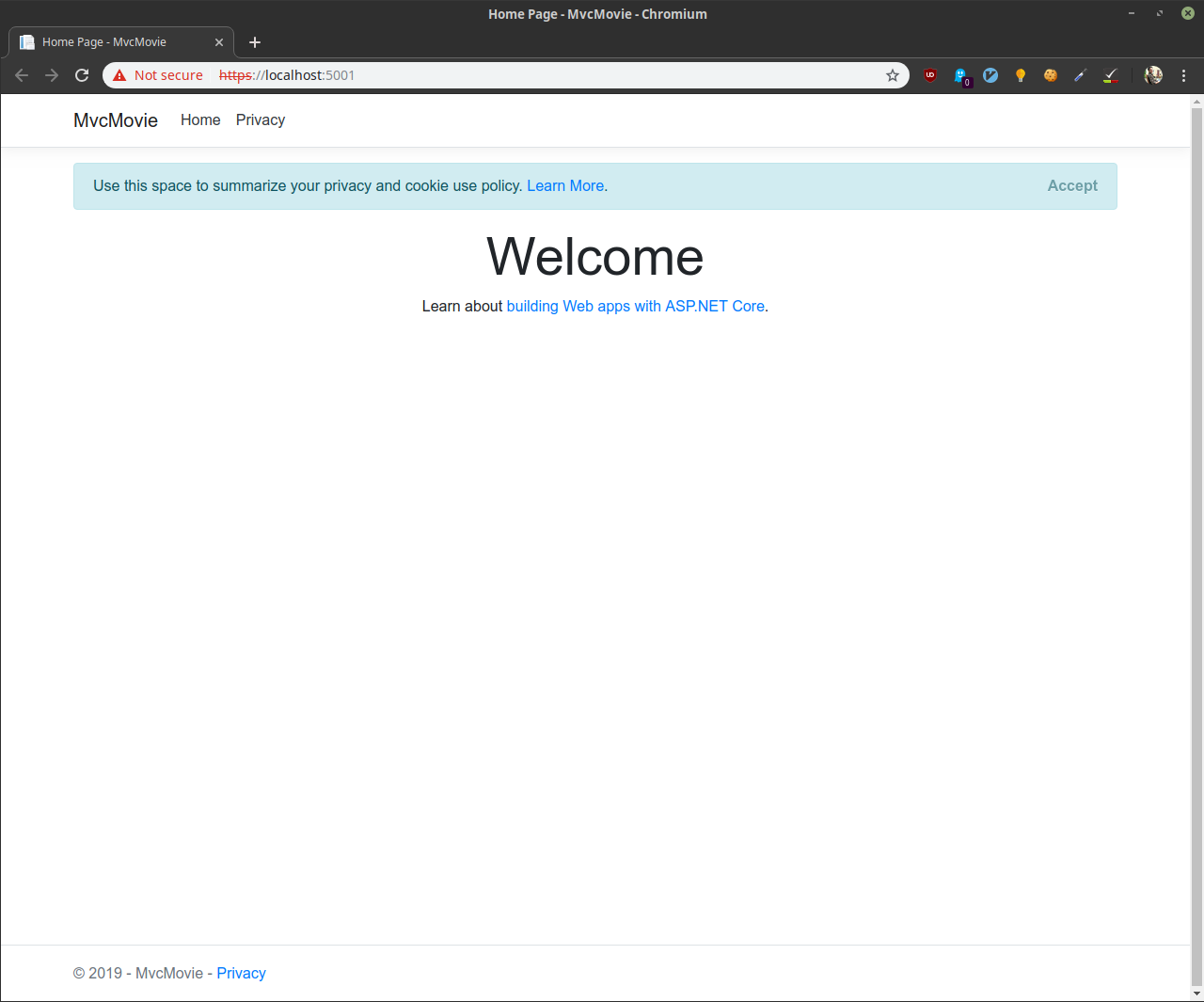
Running asp.net mvc project