If you have ever tried to upload large file to wordpress and got the HTTP error when using the the multi-file uploader, Or when using the browser’s built-in file uploader and got a ERR_CONNECTION_RESET error message, you can solve the problem with a plugin. This tutorial requires that you have FTP access to the wordpress installation.
This is more of a quick fix than a solution. But it will get the problem out of the way for those single large files one needs to be uploaded.
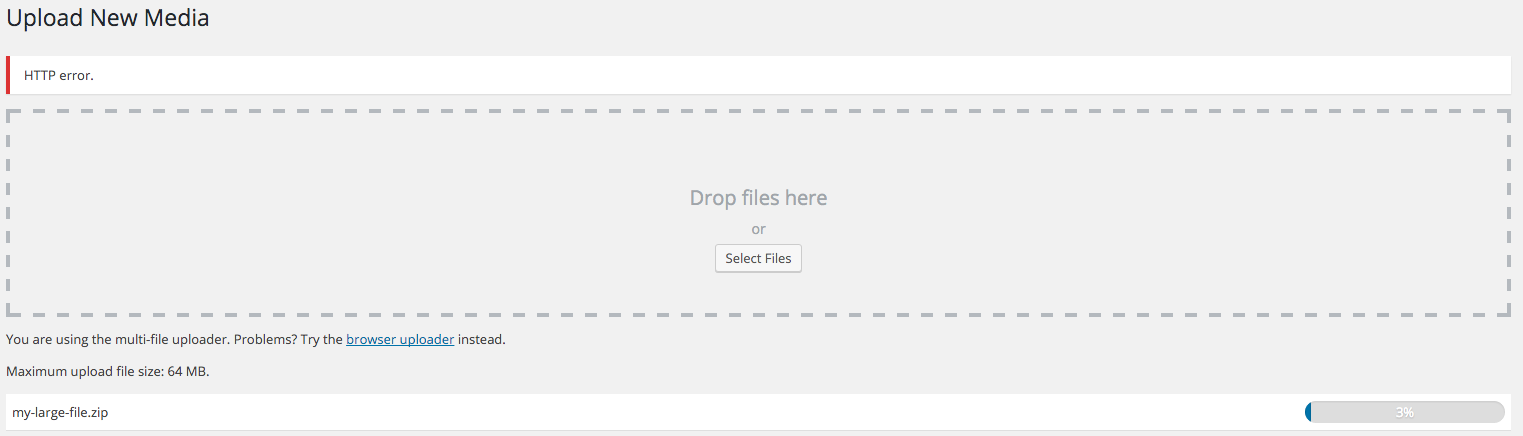
HTTP Error
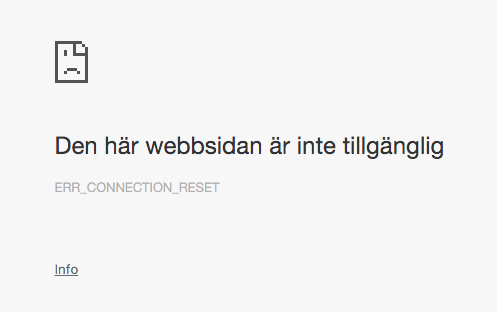
ERR_CONNECTION_RESET
How to upload a large file to Wordpress
1. Start of by installing the Add from server plugin.
"The heart of a CMS is the ability to upload and insert content, WordPress does a fantastic job at this, unfortunately, some web hosts have limited servers, or users simply do not have the ability to upload large files through their web browser. Add From Server is designed to help ease this pain, You can upload a bunch of files via FTP (Or your favourite transmission method) and simply import those files from the webserver directly into WordPress."
2. Upload your large file via FTP to your Wordpress upload folder. If you haven’t changed this it’s located in wp-content/uploads.
3. Now go to Media->Add from server and browse to the path of the file you uploaded.

Media add from server
4. Click on the checkbox of the file and click import.
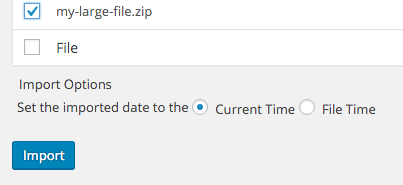
Click import
5. Now it’s done!
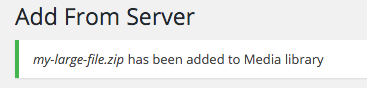
Done