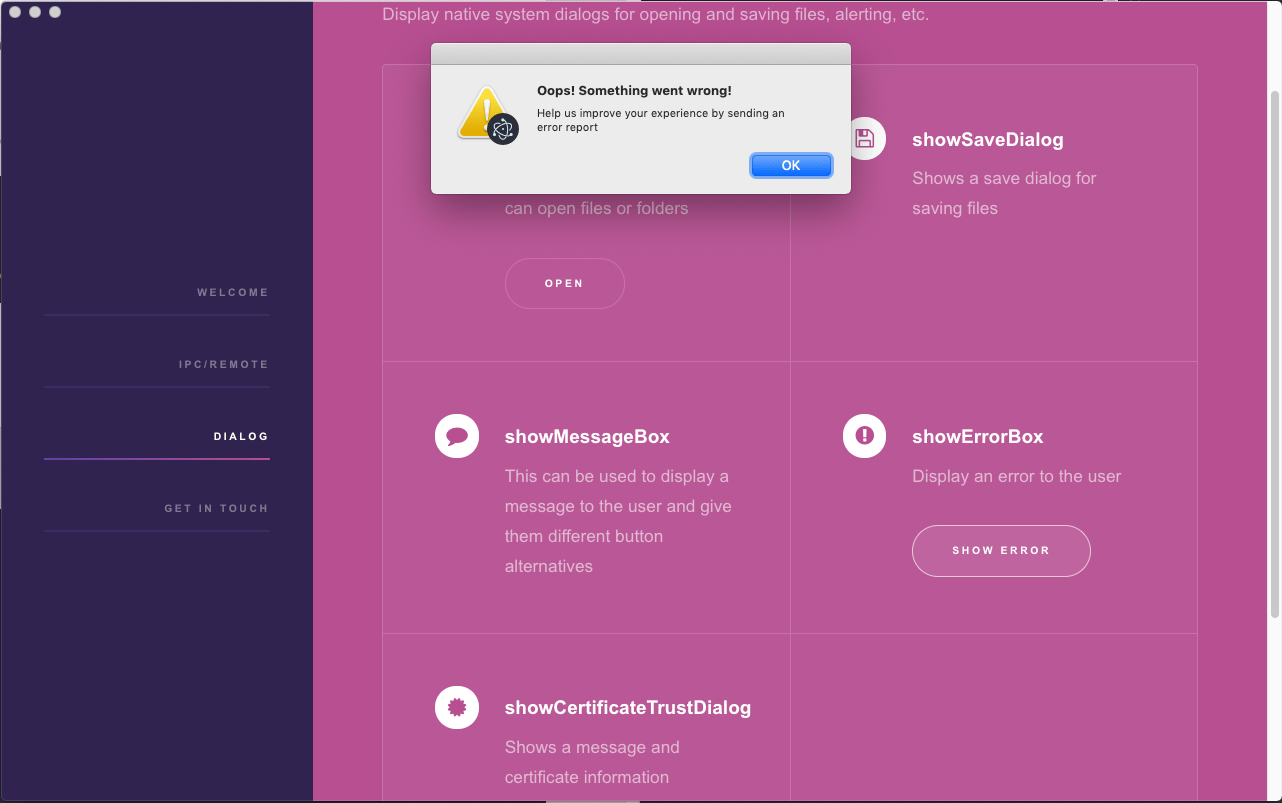
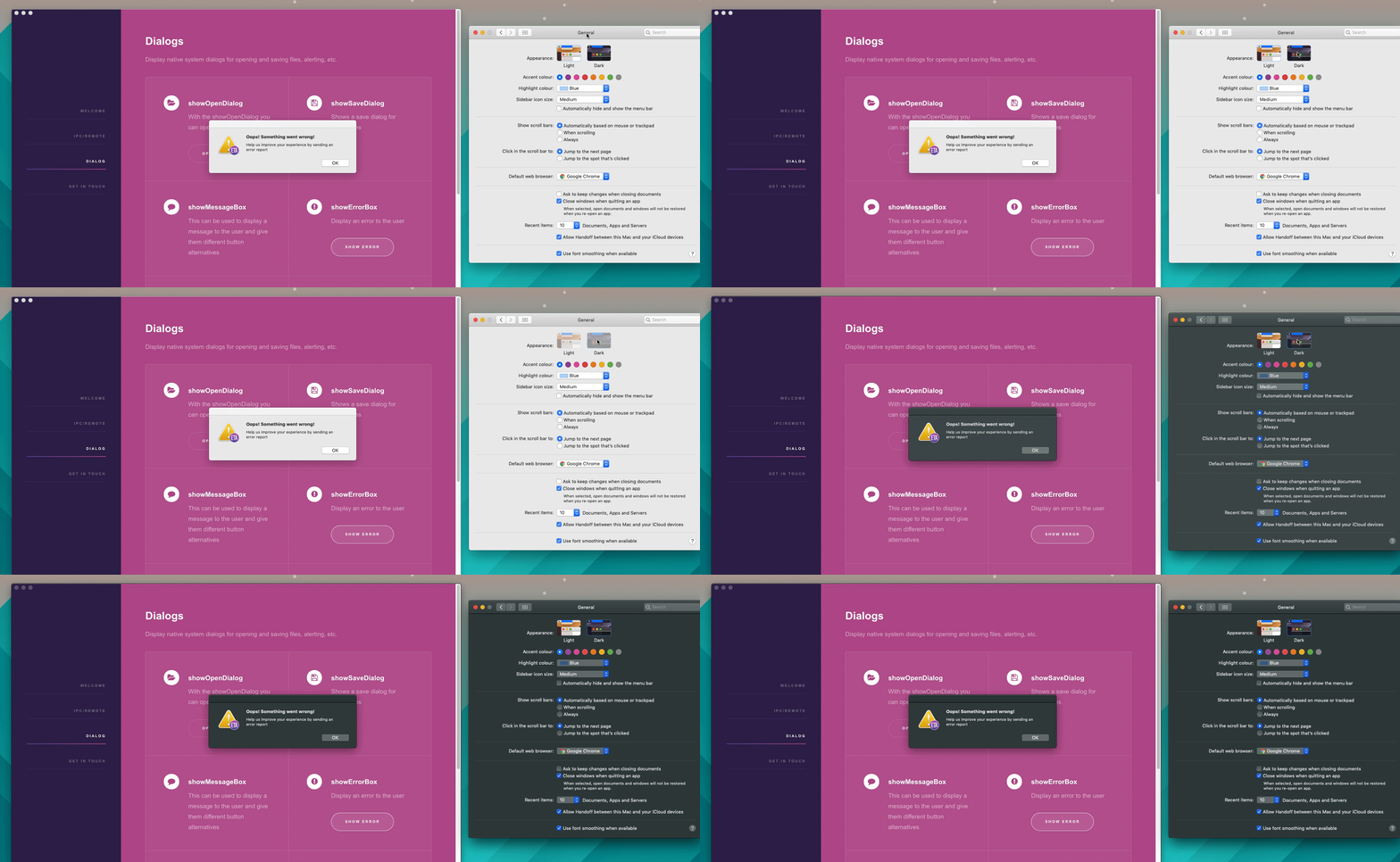
At the time of writing this tutorial there is no support for dark mode in electron. But it’s on its way. Before it’s released we can use Electron-packager for any electron app we want dark mode support for.
The electron tutorial app has not been updated to the latest version of electron. Lets take a look at how to do that.
At the time of writing the latest stable version is electron v3.0.5.
1. Updating the version used in package.json
Start a terminal and run this command:
npm install electron@latest
This will give me the currently latest stable version of electron. And I can see that by opening package.json and looking at the electron version which is now:
I use the CLI a lot. So I also want to update the globally installed electron package. This can be done by adding the -g parameter to the install command.
npm install electron@latest -g
When this is finished you can check the version by running this in a terminal:
electron --version
v3.0.5
3. Test your app
Now it’s time to test that your app still does what it is supposed to be doing on all three platforms. But that is up to you. Maybe you need to update more packages to their latest version. The electron tutorial app only has three more packages, electron-installer-dmg, electron-packager and electron-winstaller. So I’ll update those.
the showOpenDialog returns an array of strings with the paths chosen by the user. If you instead decide to use the callback method it will return undefined.
There are more options to showOpenDialog to use. Take a look at the docs to se what the options are.
In the electron-tutorial-app this code is used to display a showOpenDialog. It also uses ipc to communicate between the main and renderer process:
const{ipcMain,dialog}=require('electron')ipcMain.on('show-open-dialog',(event,arg)=>{constoptions={//title: 'Open a file or folder',//defaultPath: '/path/to/something/',//buttonLabel: 'Do it',/*filters: [
{ name: 'xml', extensions: ['xml'] }
],*///properties: ['showHiddenFiles'],//message: 'This message will only be shown on macOS'};dialog.showOpenDialog(null,options,(filePaths)=>{event.sender.send('open-dialog-paths-selected',filePaths)});})
As you can see above some ipc-stuff is used. Take a look at the dialog.js to see how the message is sent and how the response is handled.
In this Electron dialog tutorial we’ll take a look at using the different dialogs electron provides. With the dialog we can display native system dialogs for opening and saving files, alerting, etc.
Each dialog has its own post to make them easier to read.
Using showOpenDialog
With the showOpenDialog you can let the user select one or more files or folders. The selected paths are returned as an array of strings.