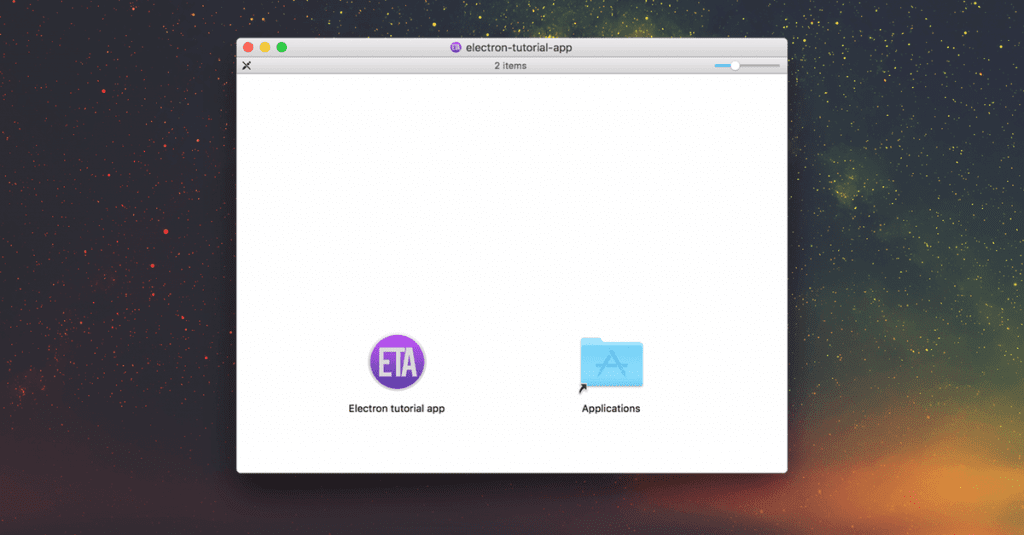
To create a DMG installer for our Electron app we can use the electron-installer-dmg package.
In this tutorial we’ll create a DMG installer for the Electron tutorial app. To create a DMG installer you first need to package the app. Read that tutorial first if you haven’t already.
1. Installing package
Open up a terminal and run these commands:
# For use in npm scripts
npm install electron-installer-dmg --save-dev

# For use from cli
npm install electron-installer-dmg -g
2. Creating the DMG installer
This is the basics that we need to create the DMG. First run the package-mac script that we created to create a package for the mac in the electron packager tutorial:
npm run package-macThis will create a package for us in the release-builds folder. So now we can create the DMG with this command:
electron-installer-dmg ./release-builds/Electron\ tutorial\ app-darwin-x64/Electron\ tutorial\ app.app electron-tutorial-appThis will create a file called electron-tutorial-app.dmg in the root folder of the application. The dmg will use default settings. In the next step we’ll look at what settings we can do to it.
3. Usage
If we look at the file usage.txt we can see that we have some options to make when it comes to the installer:
Usage: electron-installer-dmg <path/to/.app> <appname>

Create DMG installers for your electron apps.

Usage:
  electron-installer-dmg ./FooBar-darwin-x64/FooBar.app FooBar

Options:
  --out=<path>         The directory to put the DMG into. [Default: `process.cwd()`].
  --icon=<path>        Path to the icon file that will be the app icon in the DMG window.
  --icon-size=<px>     How big to make the icon for the app in the DMG. [Default: `80`].
  --background=<path>  Path to a PNG image to use as the background of the DMG.
  --debug              Enable debug messages.
  --overwrite          Overwrite any existing DMG.
  -h --help            Show this screen.
  --version            Show version.
As you see above we can set the out path of the .dmg file that is generated. We can set an icon that the dmg-window will use (By default this was the electron icon when i tried). We can set the icon size and custom background for the window.
Since the packages are created in the release-builds folder we’ll create the installers there as well. We also already have the icon created for the application (this is done in the icon tutorial)
The command to run now looks like this:
electron-installer-dmg ./release-builds/Electron\ tutorial\ app-darwin-x64/Electron\ tutorial\ app.app electron-tutorial-app --out=release-builds --overwrite --icon=assets/icons/mac/icon.icns4. Creating a script
I am one of those that won’t be able to memorize that string. So we can add it to our scripts package.json:
 "scripts": {
     "package-mac": "electron-packager . --overwrite --asar=true --platform=darwin --arch=x64 --icon=assets/icons/mac/icon.icns --prune=true --out=release-builds",
     "package-win": "electron-packager . --overwrite --asar=true --platform=win32 --arch=ia32 --icon=assets/icons/windows/icon.ico --prune=true --out=release-builds --version-string.CompanyName='CE' --version-string.FileDescription='CE' --version-string.ProductName='ElectronTutorialApp'",
     "package-linux": "electron-packager . --overwrite --asar=true --platform=linux --arch=x64 --icon=assets/icons/png/1024x1024.png --prune=true --out=release-builds",
     "create-installer-mac": "electron-installer-dmg ./release-builds/Electron\\ tutorial\\ app-darwin-x64/Electron\\ tutorial\\ app.app electron-tutorial-app --out=release-builds --overwrite --icon=assets/icons/mac/icon.icns"
 }
And now you can run:
npm run create-installer-macNext post in this tutorial covers how to create a Windows installer.